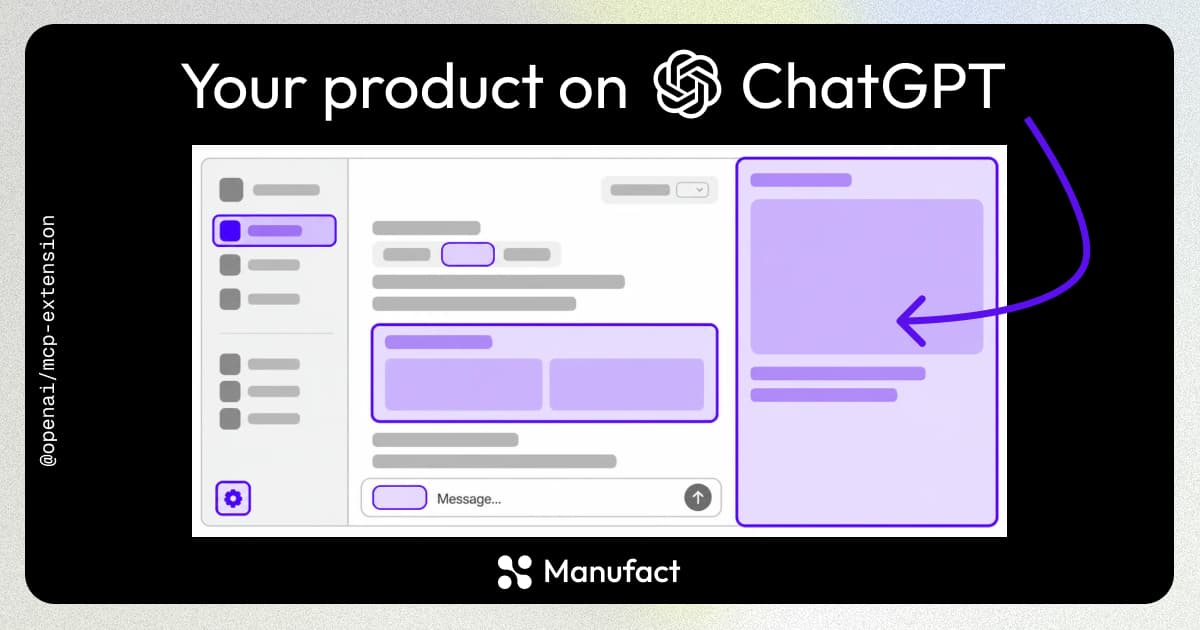
Imagine opening your design tool from ChatGPT's sidebar. Your projects are there. You select a design, ask the agent to change it, and keep working in the same canvas. The interface stays open as the conversation continues.
At OpenAI Dev Day, we spent time with the team behind MCP Extensions, the SDKs and specification that give plugins access to more of ChatGPT's interface. Users can launch an app directly or open a supported file in its editor. The app can also share the user's selection with the agent.
For software companies, this changes what an MCP integration can offer. A useful tool call might answer one question. A persistent workspace can support a whole editing session, with direct interaction when the user wants control and conversation when they want help.
We described this after Dev Day as ChatGPT becoming more like an operating system. Sidebar launchers and file handlers are familiar ways to reach software. The practical question for developers is which part of their product belongs in that environment.
This demo shows what Manufact looks like as an MCP plugin extension. We render the same page we host in Manufact Analytics, so you can explore your MCP server's usage alongside the conversation.
What MCP Extensions adds
MCP Apps already provides the foundation for interactive UI: a tool points to an HTML resource, and the host renders it in a sandbox. OpenAI MCP Extensions adds integration points specific to ChatGPT. It is a toolkit for building plugins, rather than a plugin your users install by itself.
The mcp-use framework has first-class support for MCP Apps. You can test your MCP Apps with the mcp-use Inspector, previewing widgets and inspecting the tool calls that supply their data.
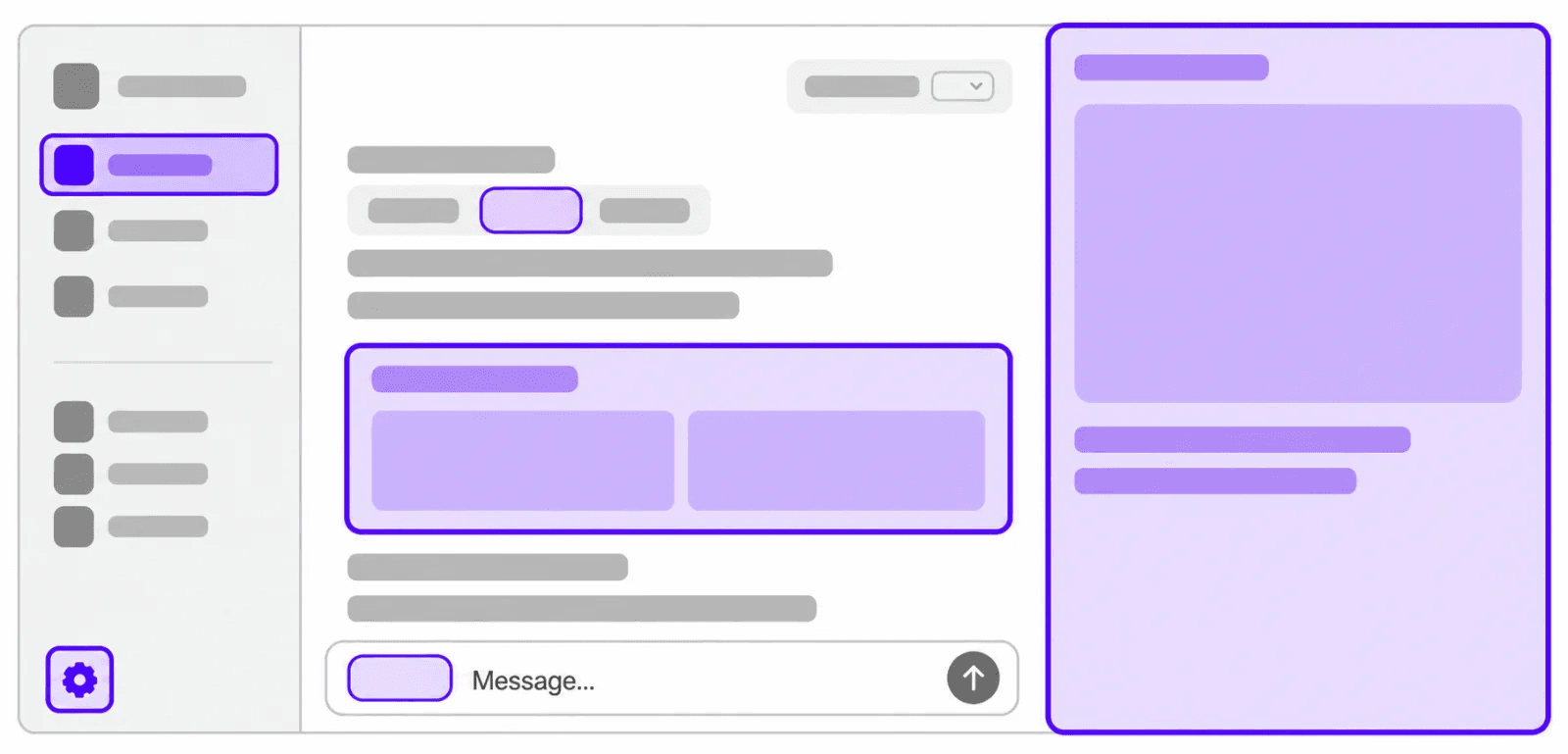
The main entry points answer different product needs:
| Entry point | How the user opens it | A useful starting view |
|---|---|---|
global | Click your app in the sidebar | A project library or dashboard |
thread | Open an app tab within a conversation | The document or visualization being discussed |
file | Open a file with an extension your app handles | A viewer or editor for that file |
OpenAI's Bits & Bolts example demonstrates a parts library and a CAD file viewer. Its source is a useful reference for how the UI connects to the server.
Extensions also cover searchable composer mentions and setup flows. OpenAI highlights Canva's sidebar experience, Figma's file mentions, and Adobe's file handlers in its extension guide.
These capabilities are host-specific. At launch, the support matrix lists file entry points and composer mentions as desktop-only. Keep your underlying tools usable in other MCP clients and check capabilities before calling an optional frontend API.
| Feature | Desktop | Web | iOS | Android |
|---|---|---|---|---|
| Global entrypoint | Supported | Supported | Supported | Supported |
| Thread entrypoint | Supported | Supported | Supported | Supported |
| File entrypoint | Supported | Not supported | Not supported | Not supported |
| Structured settings | Supported | Supported | Supported | Supported |
| Resource display modes | Supported | Supported | Supported | Supported |
| MCP App deep links | Supported | Supported | Supported | Not supported |
| Messages | Supported | Supported | Supported* | Supported* |
| Plugin onboarding | Supported | Supported | Supported | Supported |
| Model context | Supported | Supported | Supported* | Supported |
| File opening | Supported | Not supported | Not supported | Not supported |
| File resources | Supported | Not supported | Not supported | Not supported |
| Composer at-mentions | Supported | Not supported | Not supported | Not supported |
| OpenAI form elicitation | Supported | Supported | Not supported | Not supported |
As of October 1st, 2026. Source: OpenAI MCP Extensions specification.
In this matrix, Web refers to the Work browser, excluding classic ChatGPT. Asterisks indicate platform-specific limitations described in the linked specification.
Give your app a sidebar entry point
A sidebar entry point works like an app in the dock. The user clicks it and opens your interface without first writing a prompt or waiting for the model to choose a tool. In OpenAI's Bits & Bolts demo, that interface is a library of CAD parts.
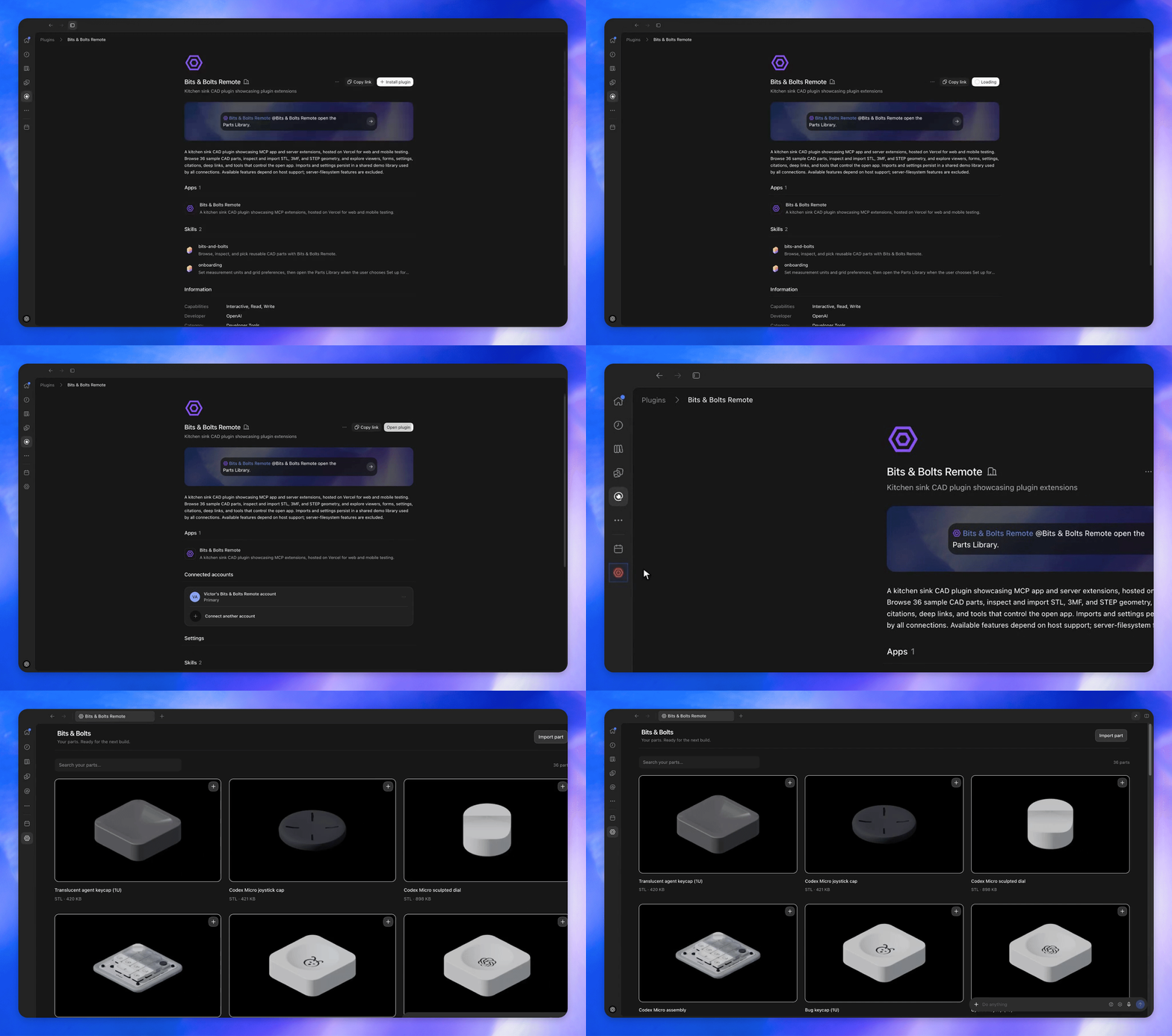
Open the parts library directly from the sidebar. Demo: OpenAI MCP Extensions .
A thread entry point gives each conversation its own app instance, closer to a window for the document being discussed. Choose a global entry point for browsing across projects, and a thread entry point for work tied to one conversation.
For an existing MCP App, the key addition is entrypoints in the tool's metadata. The following server fragment uses the official TypeScript MCP SDK and MCP Apps helpers. It assumes you already have a server and a built HTML bundle in workspaceHtml.
Install OpenAI's extension SDK into that project:
pnpm add @openai/mcp-extensionsRegister the UI resource and an opening tool:
import {
  registerAppResource,
  registerAppTool,
  RESOURCE_MIME_TYPE,
} from "@modelcontextprotocol/ext-apps/server";
import type {
  OpenAIUiResourceMetadata,
  OpenAIUiToolMetadata,
} from "@openai/mcp-extensions/server";
import { z } from "zod";

const workspaceUri = "ui://architecture/workspace";

registerAppResource(server, "workspace", workspaceUri, {}, async () => ({
  contents: [
    {
      uri: workspaceUri,
      mimeType: RESOURCE_MIME_TYPE,
      text: workspaceHtml,
      _meta: {
        "openai/ui": {
          availableDisplayModes: ["inline", "fullscreen"],
          preferredDisplayMode: "fullscreen",
        } satisfies OpenAIUiResourceMetadata,
      },
    },
  ],
}));

registerAppTool(
  server,
  "open_workspace",
  {
    title: "Architecture workspace",
    description: "Open the service catalog or its dependency visualization.",
    inputSchema: {
      state: z.enum(["browse", "visualize"]).optional(),
    },
    _meta: {
      ui: { resourceUri: workspaceUri },
      "openai/ui": {
        entrypoints: [{ type: "global" }],
      } satisfies OpenAIUiToolMetadata,
    },
  },
  async ({ state = "browse" }) => ({
    content: [],
    structuredContent: { state },
  }),
);
Notice where the metadata lives. Entry points belong to the tool. Display preferences belong to the UI resource's returned content. Setting both on the tool will not express the configuration above.
The optional state also matters. Sidebar and thread entry points invoke the opening tool with {}. If the tool requires a project ID, the user cannot reach its initial view through that path. Start with a library or empty state and let them choose a project there.
Use { type: "thread" } when the view belongs to a conversation. See OpenAI's registration examples for the complete setup, including icons.
Useful tip: keep one workspace in sync with the conversation
Declare display modes on the server and use one widget with one opening tool for related views.
The resource above advertises both supported display modes and requests fullscreen. That gives the host the information before the frontend initializes. For model-initiated tools, the preference asks ChatGPT to open the larger view immediately. It remains a hint, as described in the display-mode specification.
For the architecture workspace, browsing the catalog and viewing dependencies can be states of the same interface. A follow-up such as "show the dependency graph" can use state: "visualize". Keep separate tools for distinct operations, such as editing a service; you do not need a separate widget for every view.
On the frontend, receive input updates and render the initial tool result. Register the handlers before connecting so the first update is not missed:
import { App } from "@modelcontextprotocol/ext-apps";

const app = new App({ name: "architecture-workspace", version: "1.0.0" });

function readView(value: unknown): "browse" | "visualize" {
  return value === "visualize" ? "visualize" : "browse";
}

// setView updates your application's router or UI state.
app.addEventListener("toolinput", ({ arguments: input }) => {
  setView(readView(input?.state));
});

app.ontoolresult = (result) => {
  setView(readView(result.structuredContent?.state));
};

await app.connect();
Rendering the result already supplied by the host also avoids a second opening call just to load the same data.
The current UI reference describes openai/widgetSessionId as host-provided result metadata. The code above handles updates delivered to an instance; it does not establish reuse across calls. Verify the session-reuse behavior in your target client before relying on it.
Give the agent the user's selection
An open canvas alone does not tell the model what the user clicked. If someone selects the Payments service and asks "what depends on this?", your app needs to supply that selection.
OpenAI's frontend SDK provides modelContext.update. In the frontend above, instantiate the extension wrapper before app.connect(), then call it from your selection handler after connection:
import { OpenAIExtensions } from "@openai/mcp-extensions/app";

const extensions = new OpenAIExtensions(app);

async function onServiceSelected(service: { id: string; name: string }) {
  await extensions.modelContext?.update({
    content: [
      {
        type: "text",
        text: `Selected service: ${service.name} (${service.id}).`,
      },
    ],
    structuredContent: { selectedServiceId: service.id },
  });
}
Send enough context to identify the selected object. The agent can fetch details through a tool when needed. There is usually no reason to attach the entire service catalog every time the user clicks a node.
Context updates replace the context previously supplied by that app instance. The host can also notify the app when context changes, including when a user removes its attachment. Handle that event if your UI displays an attached selection. OpenAI documents both directions in its model-context guide.
Open files in your own viewer
File handlers bring the familiar "Open with…" interaction into the conversation. In the example below, opening joystick-cap.stl launches the Bits & Bolts CAD viewer beside the chat. The user can inspect the geometry while keeping the request that produced the file in view.
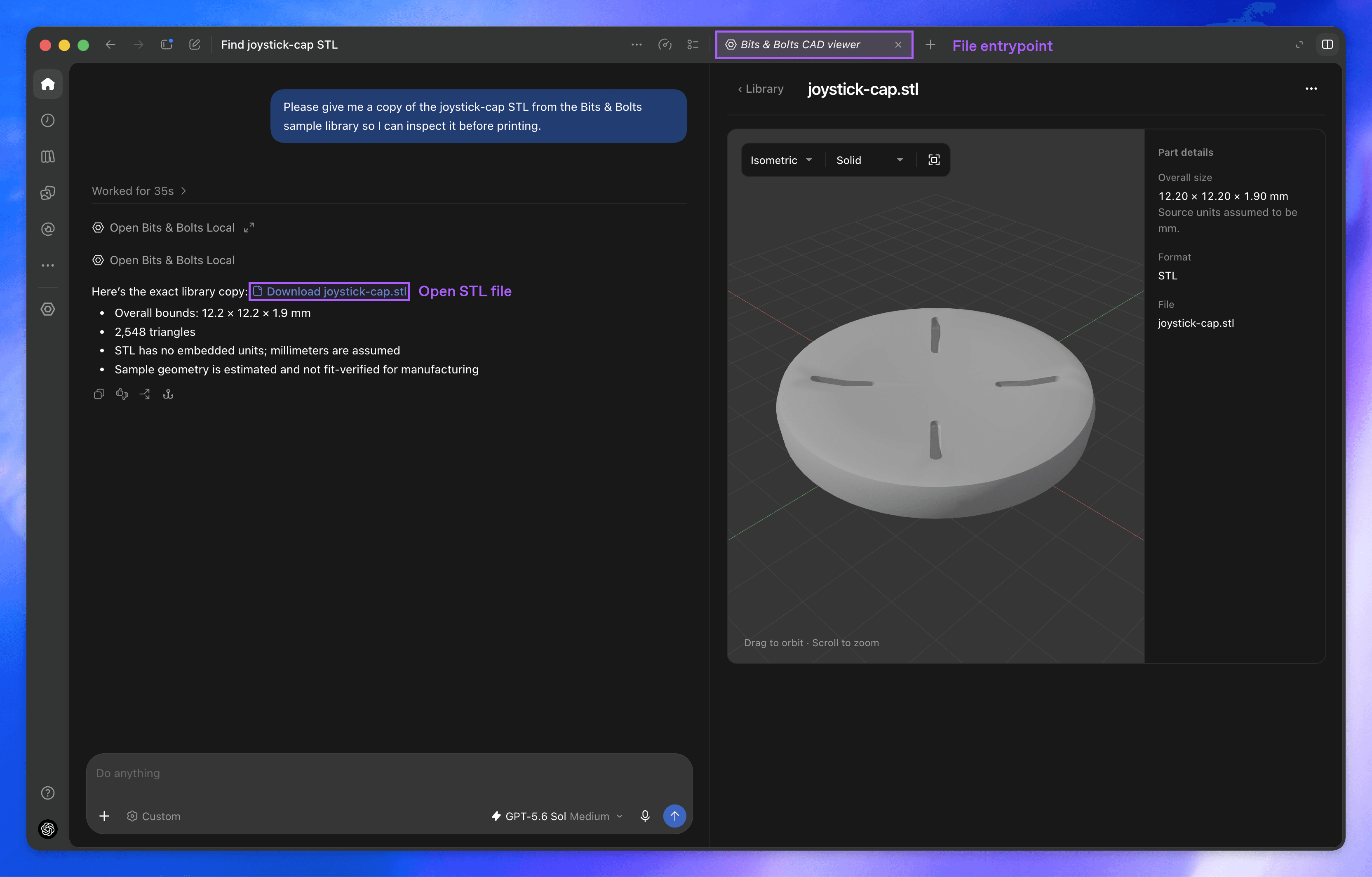
File handlers are useful when your product already has an editor. For example, a CAD plugin can advertise .stl support in its opening tool's metadata:
const fileToolMetadata = {
  ui: { resourceUri: "ui://cad/viewer" },
  "openai/ui": {
    entrypoints: [{ type: "file", extensions: ["stl"] }],
  },
};
The frontend receives a resource URI for the opened file. OpenAI's file-handler examples show how to validate that input and read it through the resource API. They also cover subscribing to changes and saving with an etag to detect conflicts. That matters when an agent and a user can both edit the same document.
Search your app from the composer
Composer mentions work like a search provider inside the prompt box. Users can search your plugin's resources and select a specific item before asking a question. The Bits & Bolts GIF shows individual CAD parts appearing as searchable results.
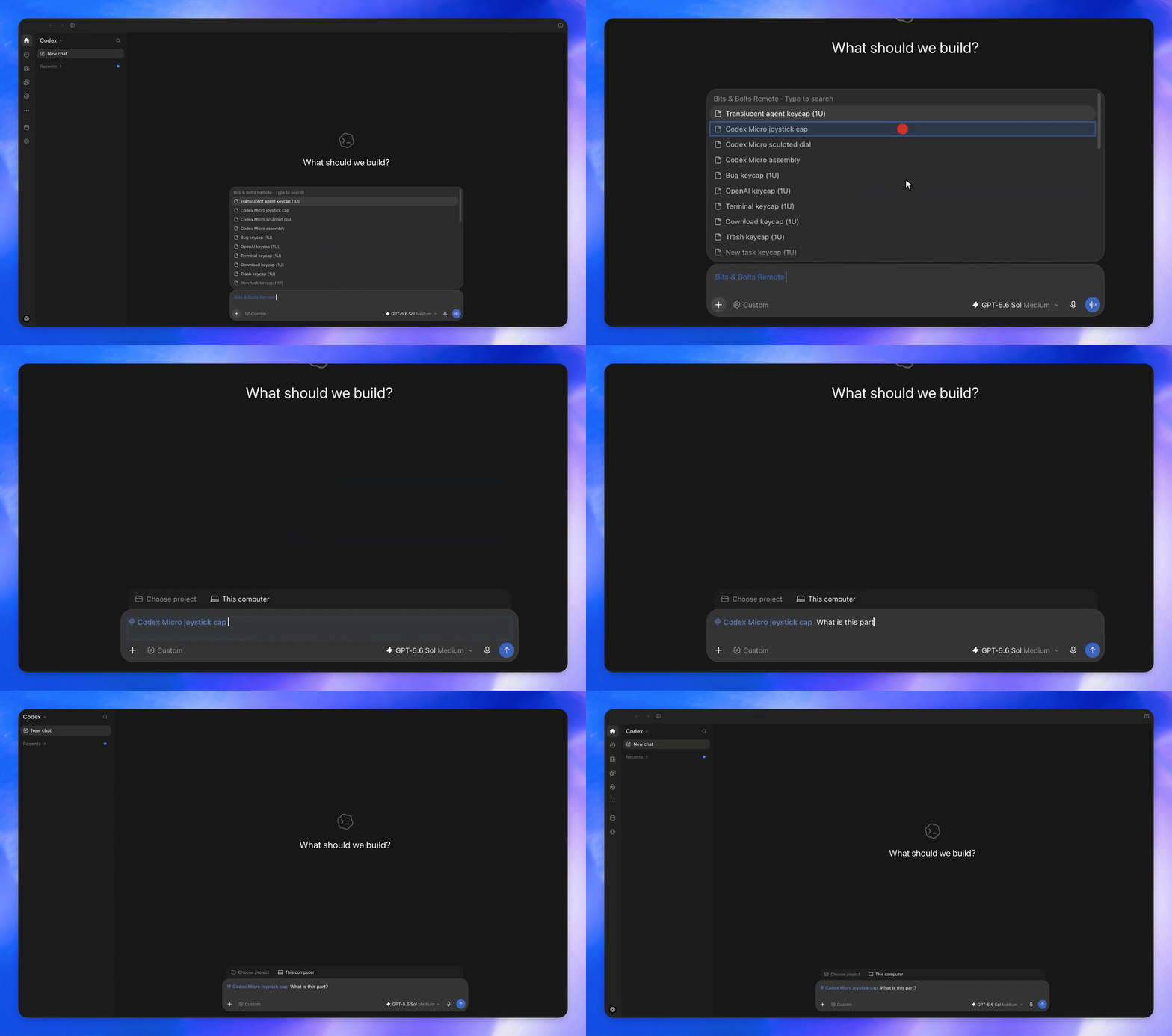
Select the exact part to discuss before sending a message. Demo: OpenAI MCP Extensions .
For a CRM, the result could be a customer record; for an architecture tool, the Payments service. The selection gives the agent a specific reference to work with, avoiding ambiguity between similarly named items. Use the mentions API to return search results the current user is allowed to access.
Give new users a setup flow
An onboarding skill plays the role of a first-run setup wizard. After installation, users can run setup in a new or existing conversation. A plugin designates the packaged skill through extensions["com.openai"].onboardingSkill in its manifest.
Use that setup flow for a real prerequisite, such as choosing a workspace. A user who can already open a useful library should be able to start there. The onboarding specification shows the manifest format.
A full app interface: MagicPath
MagicPath is a useful example. Its workspace inside Codex includes a project library and a design prompt.
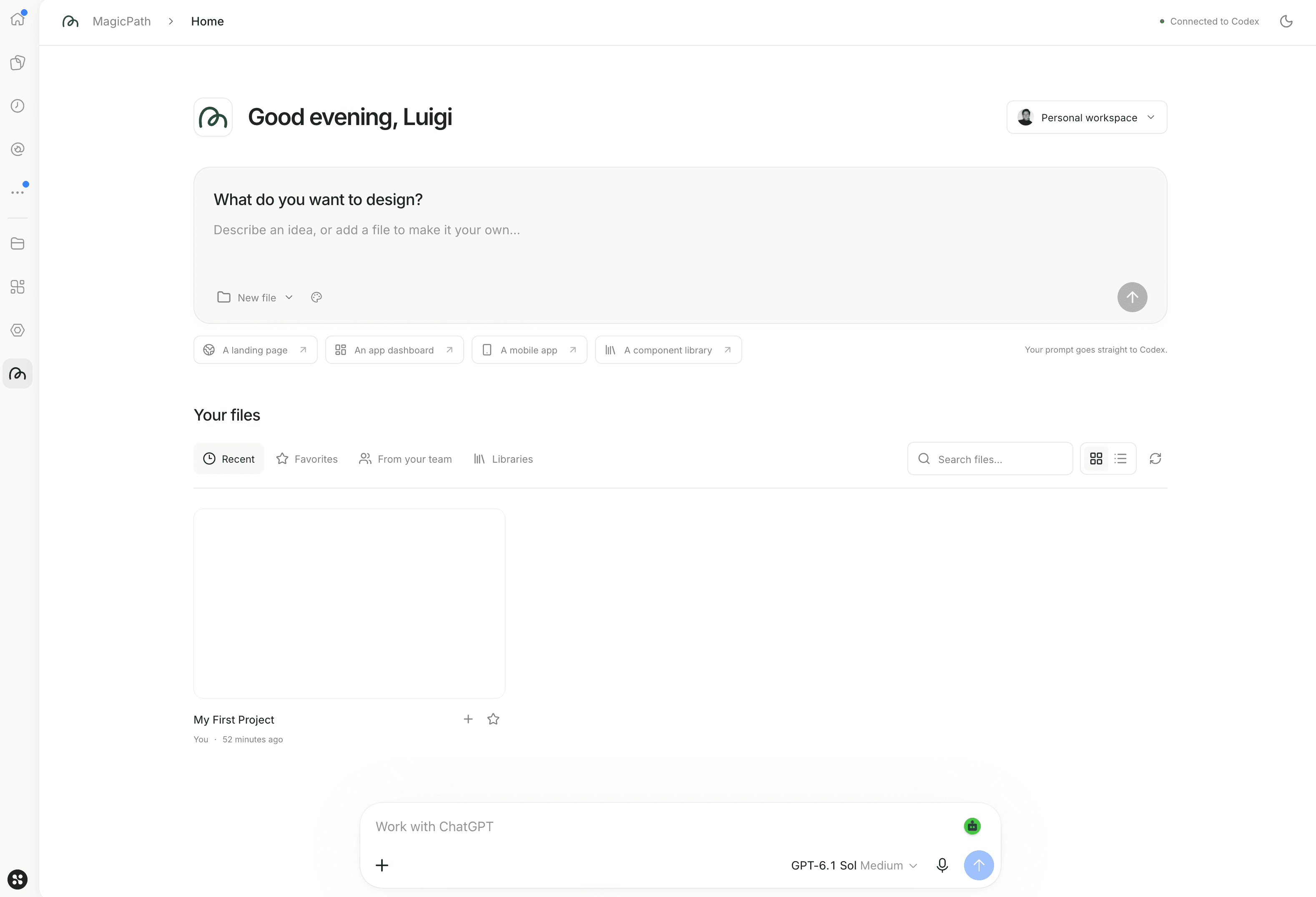
The app remains visible alongside a conversation with the MagicPath plugin:
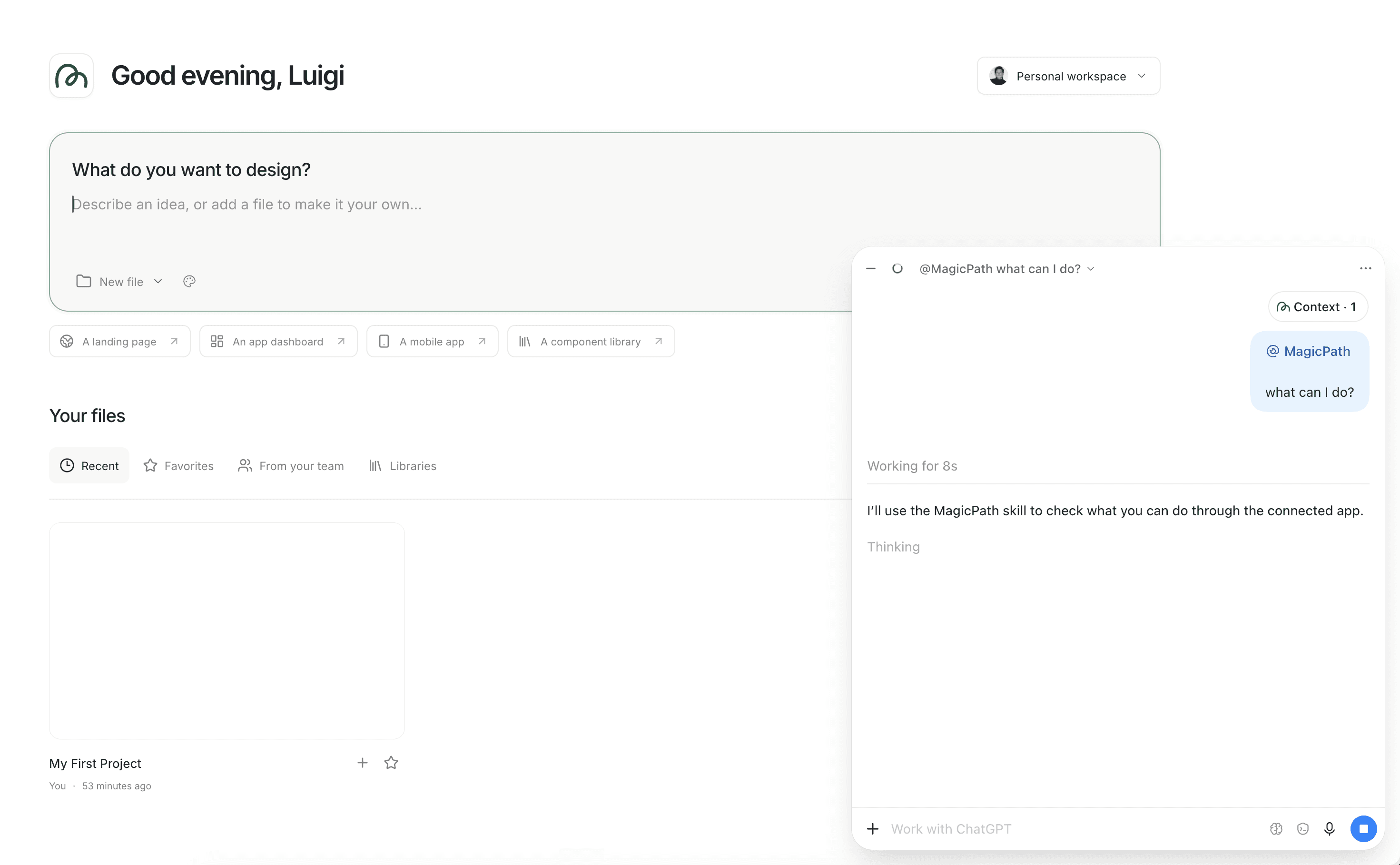
A design canvas needs space. So does an architecture diagram that someone is exploring while asking about dependencies. These are good candidates for a persistent app view: the user can inspect the result and ask a follow-up that refers to what they selected.
Build and ship with Manufact
Start with one workflow your customers already use. For a design product, that might be opening a project and iterating on one screen. Build the UI around that task, then check the full interaction in the client: open it directly, make a selection, and ask a follow-up that changes the view. Confirm that the selection still points to the right object after the update.
At Manufact, we build the open-source mcp-use framework and cloud infrastructure for MCP apps. Use mcp-use to build your server and UI, then inspect the tool calls during development. Manufact Cloud gives you a hosted MCP endpoint and production traces for understanding how clients use it. Publishing checks help prepare your integration for marketplace review.
The extension examples here use OpenAI's SDK on top of the standard MCP SDK. Manufact also hosts servers built with other frameworks, so you can deploy that approach directly. Test the ChatGPT-specific entry points in ChatGPT alongside your ordinary MCP tool checks.
Start with the mcp-use app guide, or deploy your existing MCP server on Manufact. If you are deciding which part of your product to bring into ChatGPT, talk to us.