Manufact Cloud accounts now have two-factor sign-in, and organizations on the Enterprise plan can sign their team in through their own identity provider.
The screenshots below come from a demo organization, Lumen, with the email domain lumen.dev.
Two-factor sign-in
Open Settings, then Security, and click Set up next to Authenticator app. Scan the QR code with any authenticator app, enter the 6-digit code it shows and click Turn on. Manufact then shows 10 backup codes. Save them somewhere safe: each one signs you in once if you lose your phone.
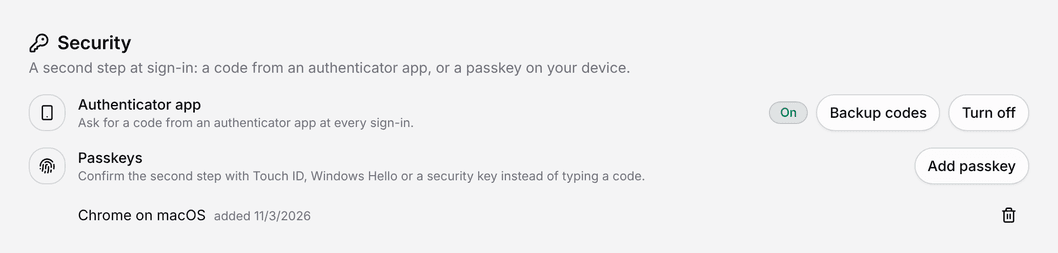
From then on, every sign-in stops at a second step before Manufact creates a session. That covers every way into your account: the link and the code from the sign-in email, Google, GitHub, AgentID and a password. The second step offers these options:
| Option | How it works |
|---|---|
| Authenticator app | The 6-digit code from the app you set up |
| Email code | Email me a code instead sends a 6-digit code to your address |
| Backup code | One of the 10 codes you saved, each usable once |
| Passkey | Touch ID, Windows Hello or a security key, once you have added one |
| Trusted device | Tick Trust this device for 30 days and that browser skips the next step |
Backup codes in the same settings row creates a new set (the old codes stop working), and Turn off removes the second step.
Passkeys as the second step
With the authenticator app on, Add passkey registers the device you are using. Manufact names it after the browser and system, for example Chrome on macOS.
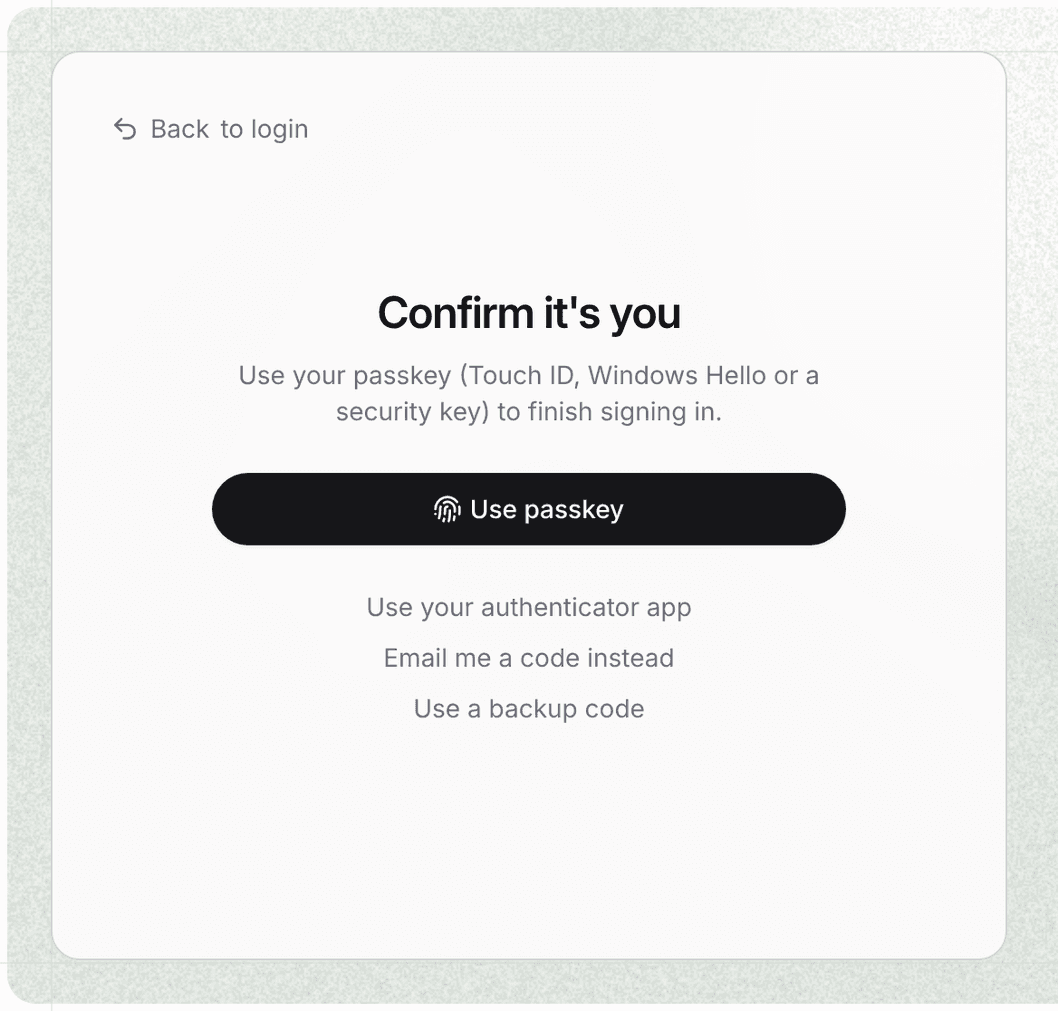
A passkey only confirms a sign-in you already started: after the email link, a code, Google or GitHub, the two-factor page asks for it first, and Use passkey finishes signing you in. If the passkey is not at hand, the other options stay one click away on the same page.
SSO for your team
Owners and admins of an Enterprise organization find a new SSO tab in Team. Setting up a provider takes four steps:
- Add an identity provider. Pick OIDC (issuer URL, client ID and client secret) or SAML (the IdP sign-in URL, its entity ID and signing certificate, and optionally the email attribute). Give it an ID and the email domain it serves.
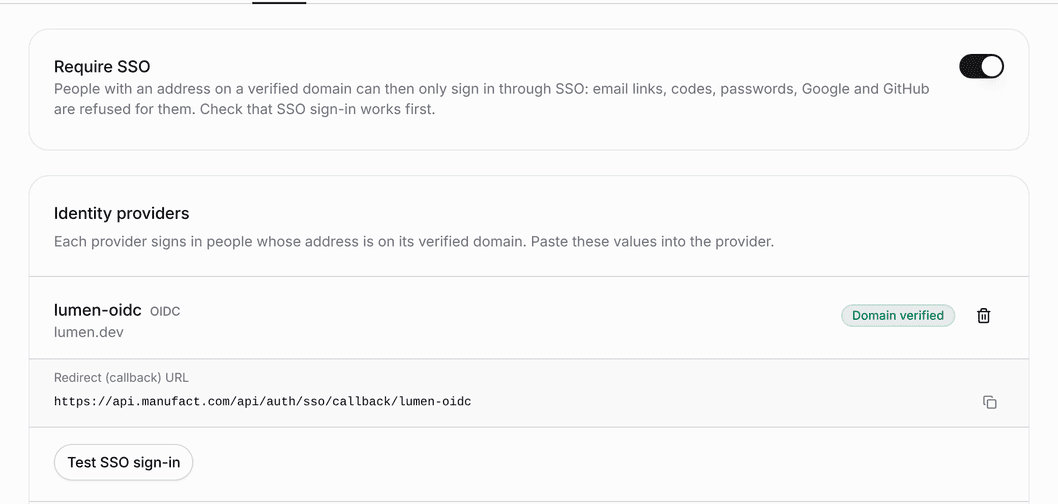
- Paste Manufact's values into your provider. The form shows the redirect URL for OIDC, or the ACS URL, entity ID and SP metadata for SAML, each with a copy button.
- Verify the domain. Show DNS record gives you a TXT record named
_better-auth-token-<provider-id>.<domain>. Add it at your DNS host and click Verify domain. A provider signs people in only once its domain is verified. - Test it. Test SSO sign-in runs a real sign-in through your provider.
The first time someone signs in through your provider, Manufact creates their account as a member of your organization. Your identity provider handles their multi-factor authentication, so SSO sign-ins skip Manufact's own second step.
There is no SSO button on the login page. When someone types an address on a domain with SSO and clicks Continue, the login page sends them straight to your identity provider.
Require SSO
Require SSO can be switched on once a provider's domain is verified. Then people with an address on that domain can only sign in through SSO: email links, sign-in codes, passwords, Google, GitHub and AgentID are refused for them. Someone who tries Google anyway lands on a page that explains their organization uses single sign-on and sends them back to SSO.
Test the provider before you switch it on.
Other sign-in changes
- A code in every sign-in email. The email with the magic link now also carries a 6-digit code, valid for 10 minutes. Corporate mail scanners sometimes open the link before you do and use it up; the code still works.
- Breached passwords are rejected. Setting or changing a password checks it against the Have I Been Pwned database. Its range API receives only the first five characters of the password's hash.
- Rate limits across servers. Each IP address gets 3 sign-in attempts every 10 seconds and 3 sign-in emails a minute. The counts live in Redis, so the limits hold across every backend instance and deploy.
- Google always asks which account. Google sign-in shows the account chooser, so people signed in to a personal and a work Google account pick the right one.
- Client ID Metadata Documents for MCP clients. MCP clients that sign in to Manufact over OAuth can now identify themselves with an
https://client ID that points to their metadata document, next to dynamic client registration. It is the registration the MCP specification of 2026-07-28 prefers. For how authentication works on your own MCP servers, see MCP Authentication: A Complete Guide.
Not covered yet
- SCIM provisioning: removing someone at your identity provider does not end their Manufact sessions or API keys yet.
- Turning on Require SSO does not sign out sessions that already exist.
- An organization-wide rule that requires two-factor for members who do not use SSO.
Try it
- Open Settings and turn on the authenticator app under Security, then add a passkey.
- On the Enterprise plan, open Team, then SSO, to connect your identity provider. To move your organization to Enterprise, book a call.