We updated the instructions for our Manufact MCP server to ask agents to use send_feedback when a tool fails. Making the tool available wasn't enough: we needed to tell the agent when to use it.
If you enable feedback on your server, update your server instructions too. An agent can see send_feedback in its tool list and still finish a task without reporting a problem. Give it clear instructions about which failures or confusing responses are worth reporting, then test that behavior in the clients your users use.
Manufact collects these reports in your server's Feedback tab. Enable the tool first, update your server instructions, check that your client can see it, then try a known failure path. Check whether the agent sends a useful report rather than assuming it will.
An agent may recover on a retry and finish the task, leaving a problem worth fixing. In our recent rewrite of our Manufact MCP, we inspect traces even when a run passes. Feedback gives us another way to find those problems.
Here's how to enable feedback on your own MCP server using Manufact:
1. Enable the Feedback tool
Open your server in the Manufact dashboard, go to Settings → Analytics, and enable Feedback tool. The setting applies without a redeploy.
Manufact adds send_feedback through its gateway, the proxy service between your AI client and MCP server. Your client must connect through that gateway URL. You don't need to add a feedback handler to your server or install an SDK to use this feature.
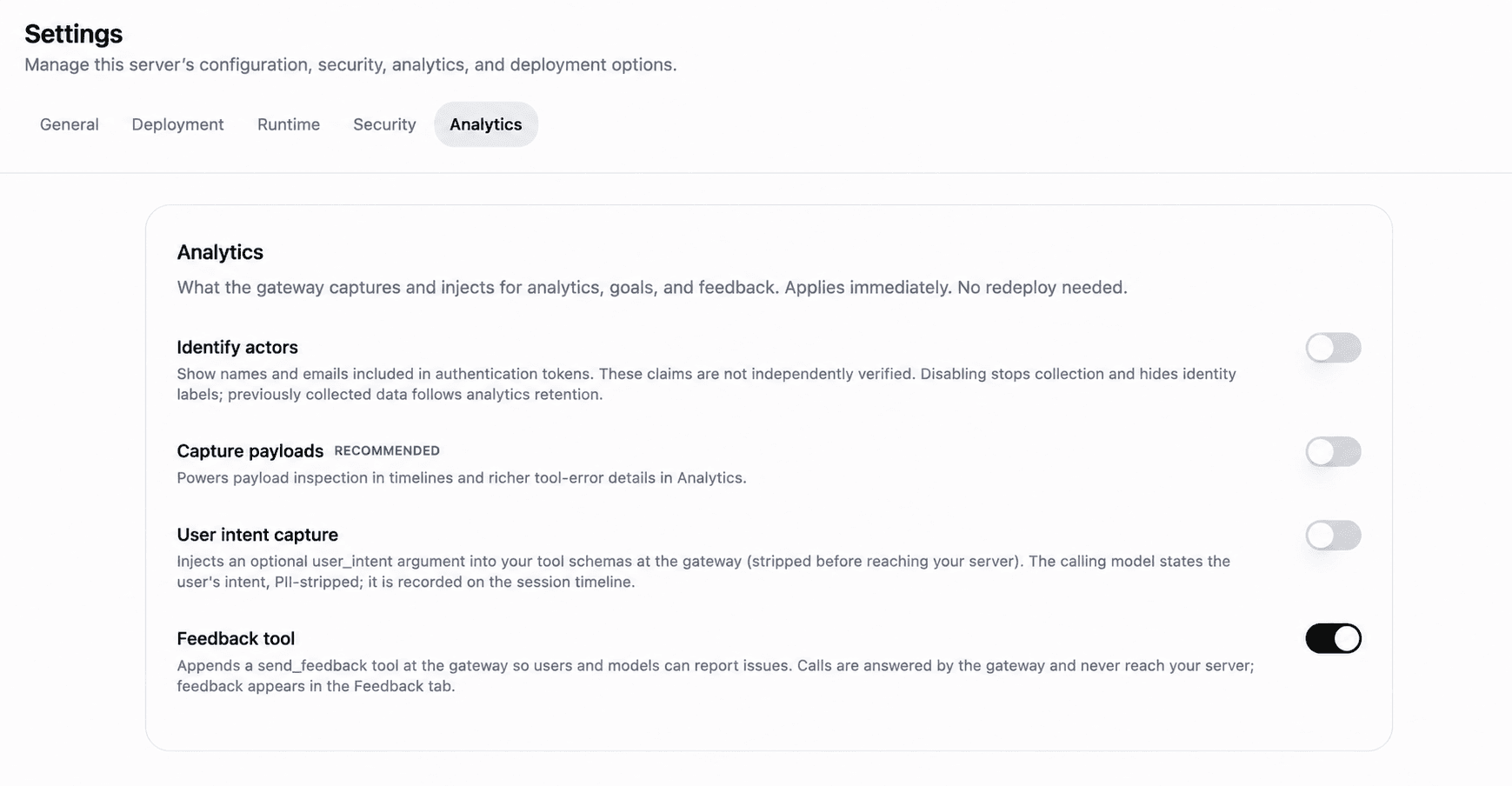
Illustration: Feedback tool enabled. Edited from a Manufact dashboard screenshot; no live server settings were changed.
2. Update your server instructions
The instructions on our own Manufact MCP server are separate from the Cloud setting that makes the tool available on your server. You can draft instructions beforehand, but make the tool available before asking an agent to call it.
If you want similar behavior, explain when feedback is useful in your server instructions. For example:
If a tool fails unexpectedly or its response prevents you from completing the
task, use send_feedback to describe the problem. Include the tool name, the
expected behavior, and what happened. Say whether a retry recovered. Remove
secrets and personal information before sending.
Adapt that instruction to your server. Keep secrets and personal data out of reports: asking the agent to remove them is not a guarantee of automatic redaction.
3. Check that your client can see the tool
Check that send_feedback is available in the client you're testing. If it is missing, refresh tool discovery using your client's supported flow. That may involve reconnecting to the server.
If your server is listed in an app store, changing its exposed tools may require resubmission. Check the analytics capture settings documentation before changing a published integration.
4. Test a failure path and check for a report
Use a test task with a known, safe failure path in the clients your users use. Inspect whether the agent sends useful feedback, then check your server's Feedback tab for the report. Check even if the agent recovers on a retry and finishes the task.
A report about an ambiguous result can be useful even when no tool returned an error. A missing report doesn't prove the interaction went well. If the agent doesn't report a problem, check that the tool is available and revisit the instructions before testing again.
5. Review feedback with the session trace
Open your server's Feedback tab to read incoming reports. You can filter by client and source. Each report includes its text and timestamp, with client information when available. Reports with a session ID have a View session link.
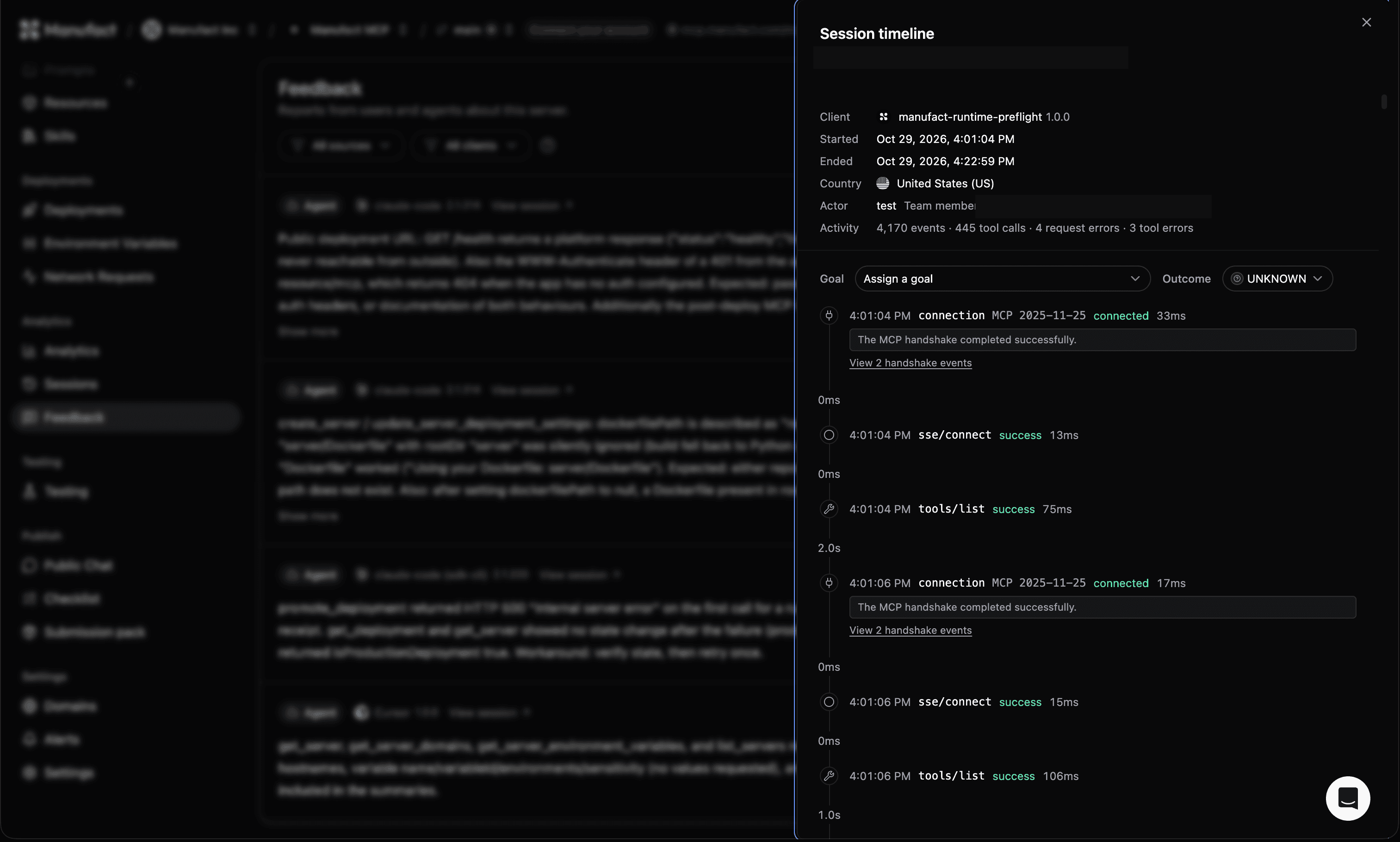
A session opened from Feedback on our own MCP server.
Start with the report, then check what actually happened in the session. An agent may describe a symptom accurately while guessing at the cause. Inspect the available tool arguments and responses before deciding what to change. Payload previews require Capture payloads to be enabled.
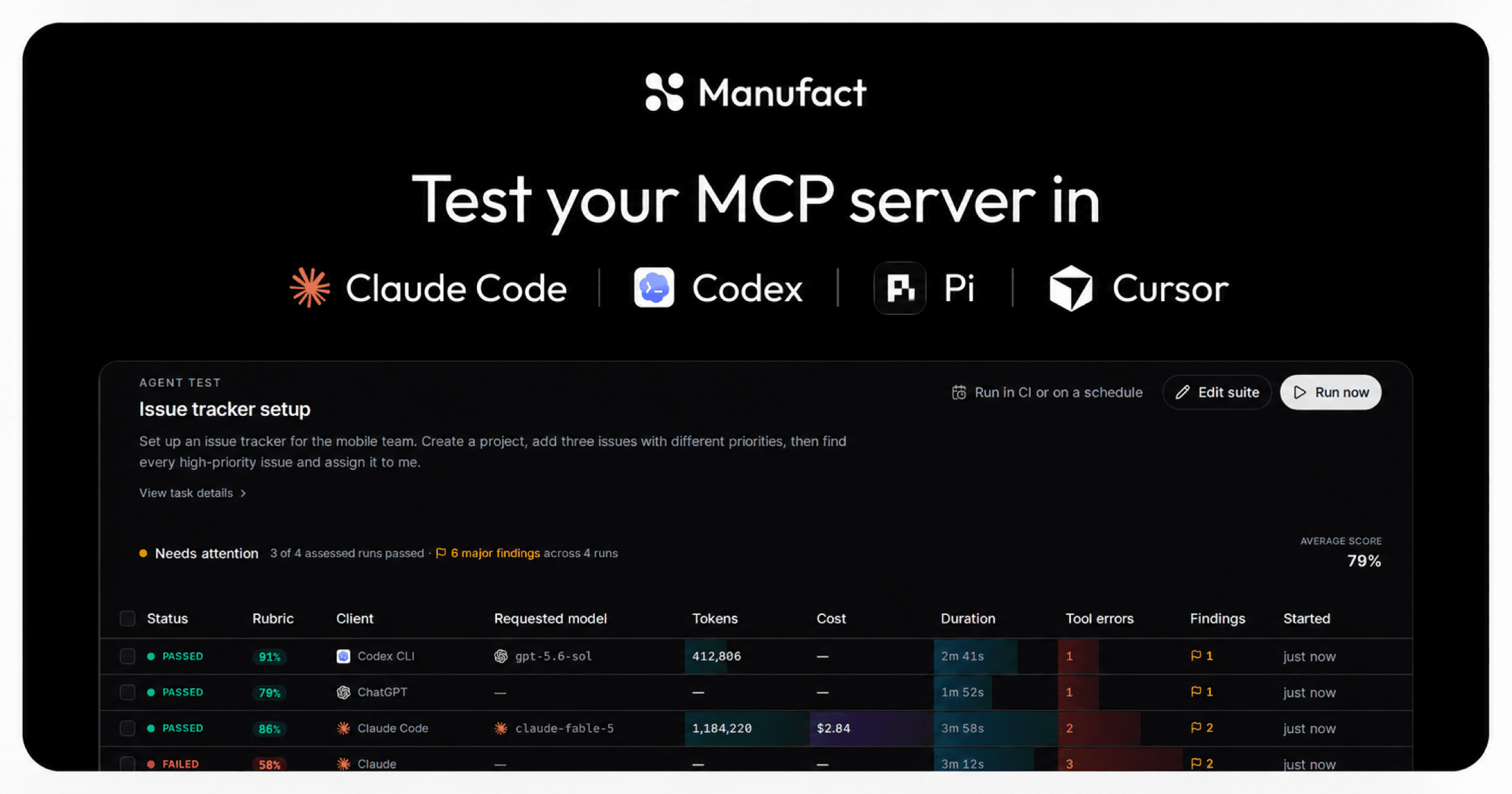
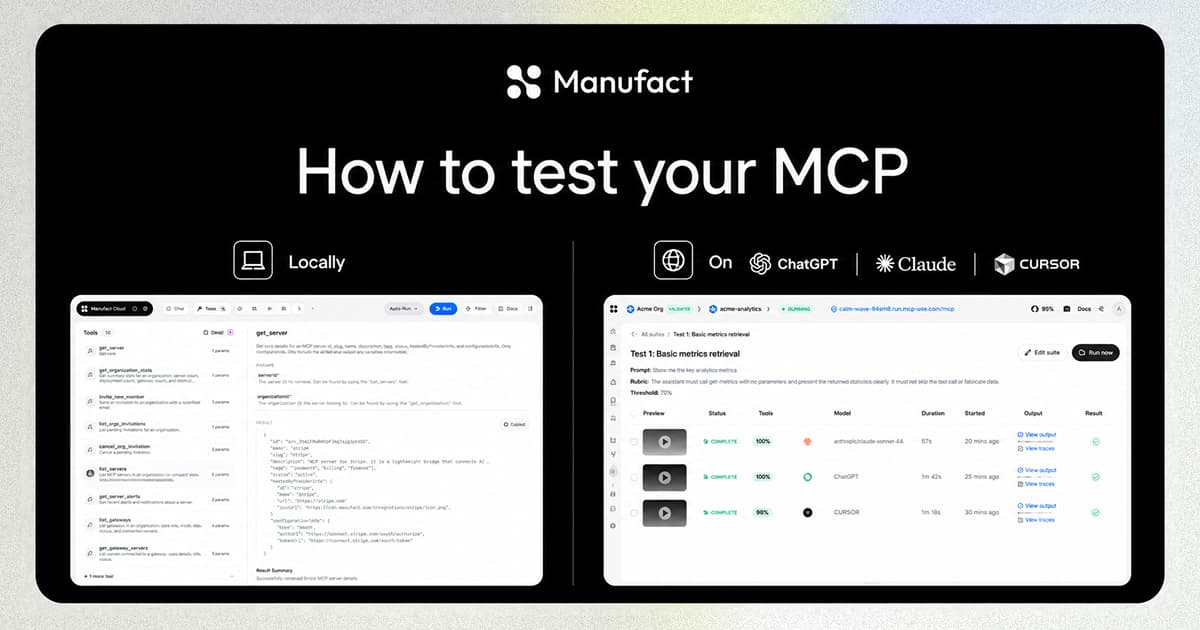
For a reproducible problem, add an eval case before changing the tool. Then rerun it after the fix and inspect the calls, including any retries. Manufact test suites let you test the task across clients.
Feedback collection doesn't diagnose or repair the server. Someone still needs to review the report and verify the fix. It also complements MCP analytics: error rates show patterns across calls, while a report can explain what the agent found confusing in one interaction.
What send_feedback sends
When the client calls the injected tool, the gateway handles the report rather than forwarding the call to your server. The tool takes two fields:
| Field | Meaning |
|---|---|
content | The feedback text. The tool asks the caller to remove personally identifiable information. |
source | user if the user initiated the feedback, or model if the agent initiated it. |
For example, an agent could send the following arguments. This is an illustrative report, not a captured user report:
{
  "content": "The search tool returned an empty result without explaining whether no records matched or the request failed. Please distinguish those cases in the response.",
  "source": "model"
}
The source value is self-reported. It helps organize reports; it doesn't verify who wrote them. The instruction to remove PII is also a request to the caller, not a guarantee of automatic redaction. Keep secrets and personal data out of feedback.
Ready to start collecting feedback on your MCP server?
Log in to Manufact, select your server, then go to Settings → Analytics and enable Feedback tool. Update your server instructions so agents know when to use it.