Muse accepts hosted MCP servers through the Muse Connector Platform. Submission starts with a listing form. The developer portal then asks for verification, a data processing questionnaire, and technical details.
Before you start
Have these ready:
- Your hosted MCP endpoint and API or MCP documentation.
- A connector name, product website, and example prompts.
- A 512 × 512 PNG or SVG connector icon.
- Your work email, support contact, privacy policy, and terms of service.
- Details about authentication and any restrictions on access.
- Your legal business details and information about the personal data your connector handles, including subprocessors, retention, deletion, and international transfers.
- If your server requires authentication, integration instructions and a dedicated test account with representative data for Muse's reviewers.
Test the endpoint and the prompts you plan to include. Manufact Publishing Checks can help identify MCP issues before submission.
Before submitting, use the MCP quality checker and leaderboard to review your server's tool descriptions, schemas, and annotations. The score measures metadata and definition quality, not whether tools execute correctly or whether Muse will approve your connector. Test the endpoint and example prompts separately.
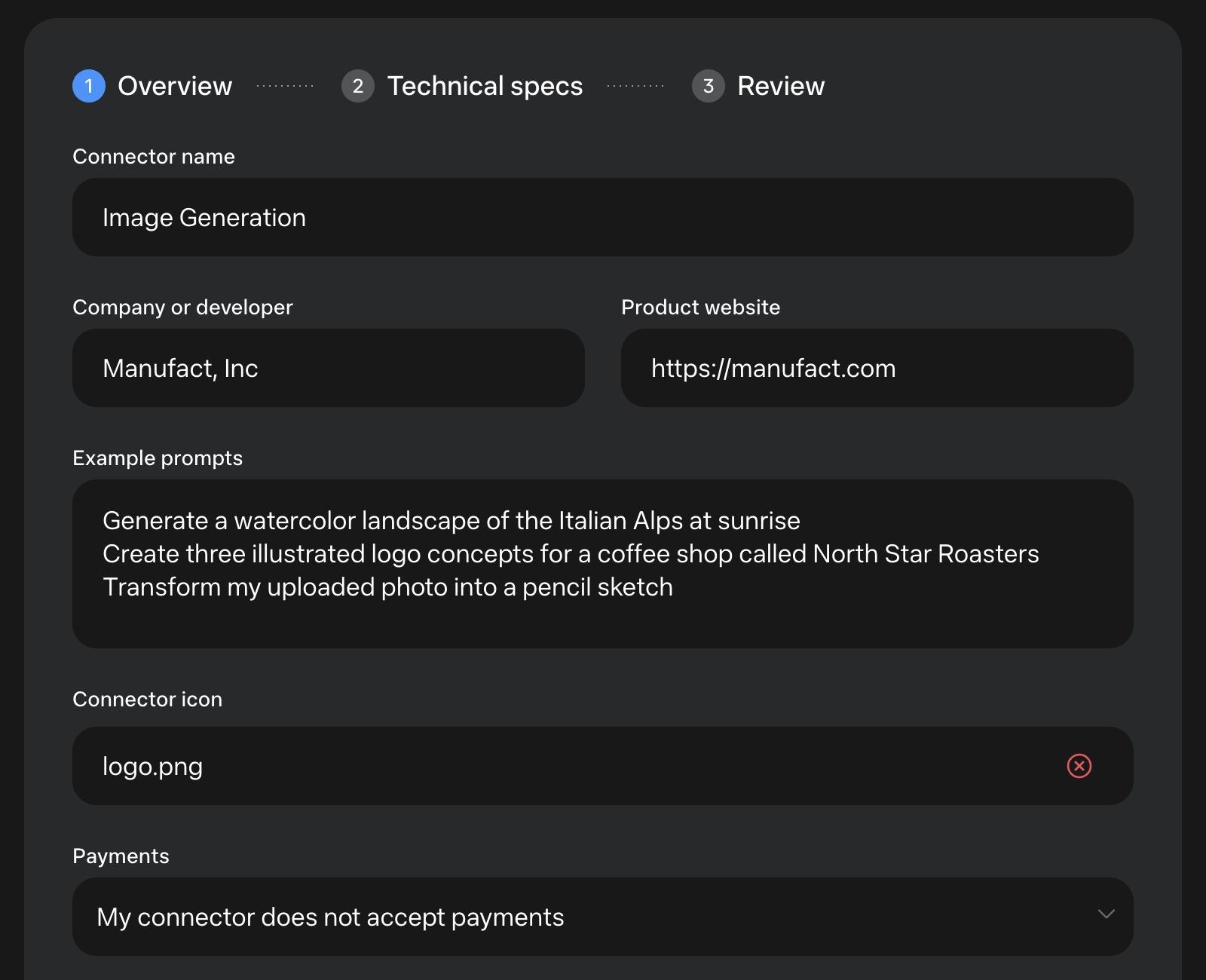
Open muse.ai/platform and click Submit a connector. If you are signed out, sign in or create an account with your work email. The form has three steps: Overview, Technical specs, and Review. The initial submission screenshots show Manufact's Image Generation connector on October 6, 2026. Step 4 covers the portal flow we checked for Manufact on November 4, 2026. Enter your own server and company details.
Step 1: Overview
Enter the Connector name, Company or developer, and Product website. Under Example prompts, write requests your connector can handle, such as generating an image from a text prompt or transforming an uploaded image.
Upload your icon, then choose whether the connector accepts payments.
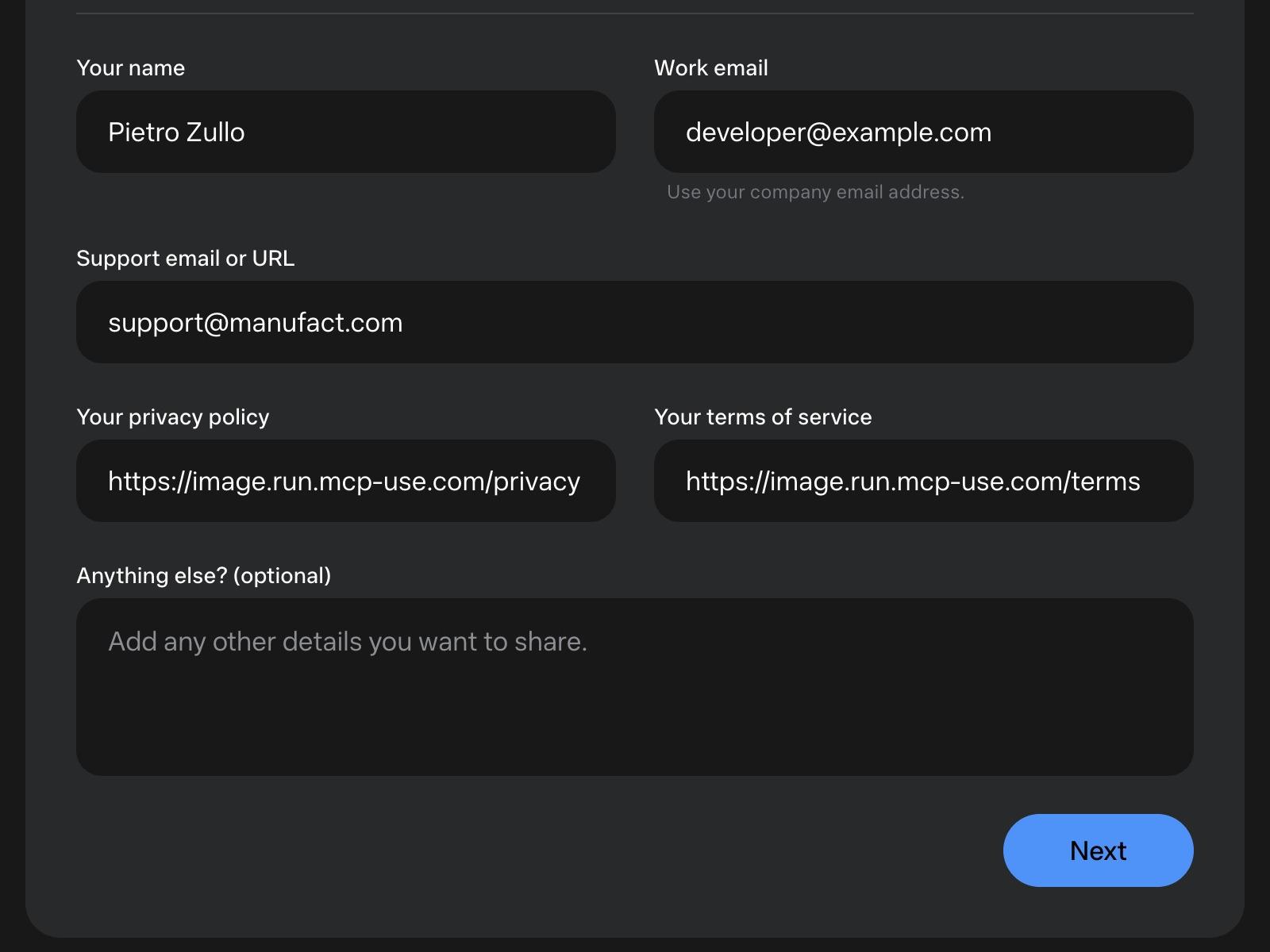
The rest of Overview asks for Your name, Work email, Support email or URL, Your privacy policy, and Your terms of service. The email field explicitly asks for a company email address. Use Anything else? for optional context, then click Next. The screenshot below uses a placeholder work email; the live submission uses the company address.
Step 2: Technical specs
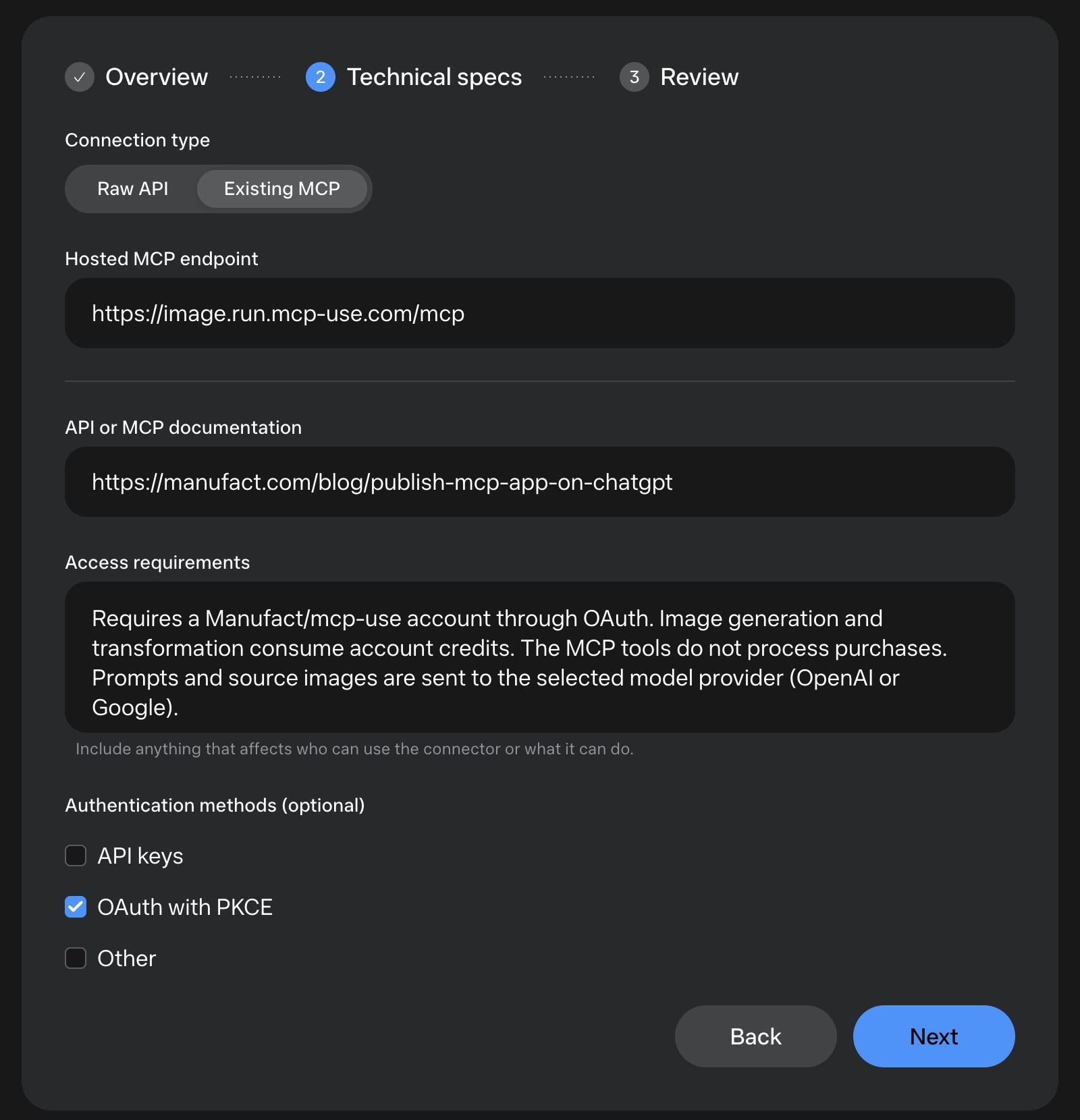
Under Connection type, select Existing MCP. The form defaults to Raw API, which has an API URL and an optional OpenAPI specification field. For an MCP server, enter your deployed URL in Hosted MCP endpoint.
Add the API or MCP documentation URL. In Access requirements, explain anything that affects who can use the connector or what it can do, such as a required account, paid plan, regional availability, or rate limits.
Authentication methods is optional and offers API keys, OAuth with PKCE, and Other. Select the methods your server supports, or leave them unchecked if authentication is not required. Image Generation uses OAuth with PKCE; its endpoint advertises the authorization server through OAuth discovery.
Click Next to inspect the completed form.
Step 3: Review
Check the listing details and technical information. Each section has an Edit button for corrections.
The final checkboxes ask you to confirm that you are authorized to submit the connector and its brand assets, acknowledge that submission does not guarantee approval, and agree to the Muse Connector Terms linked in the form. Promotion depends on usage and editorial discretion.
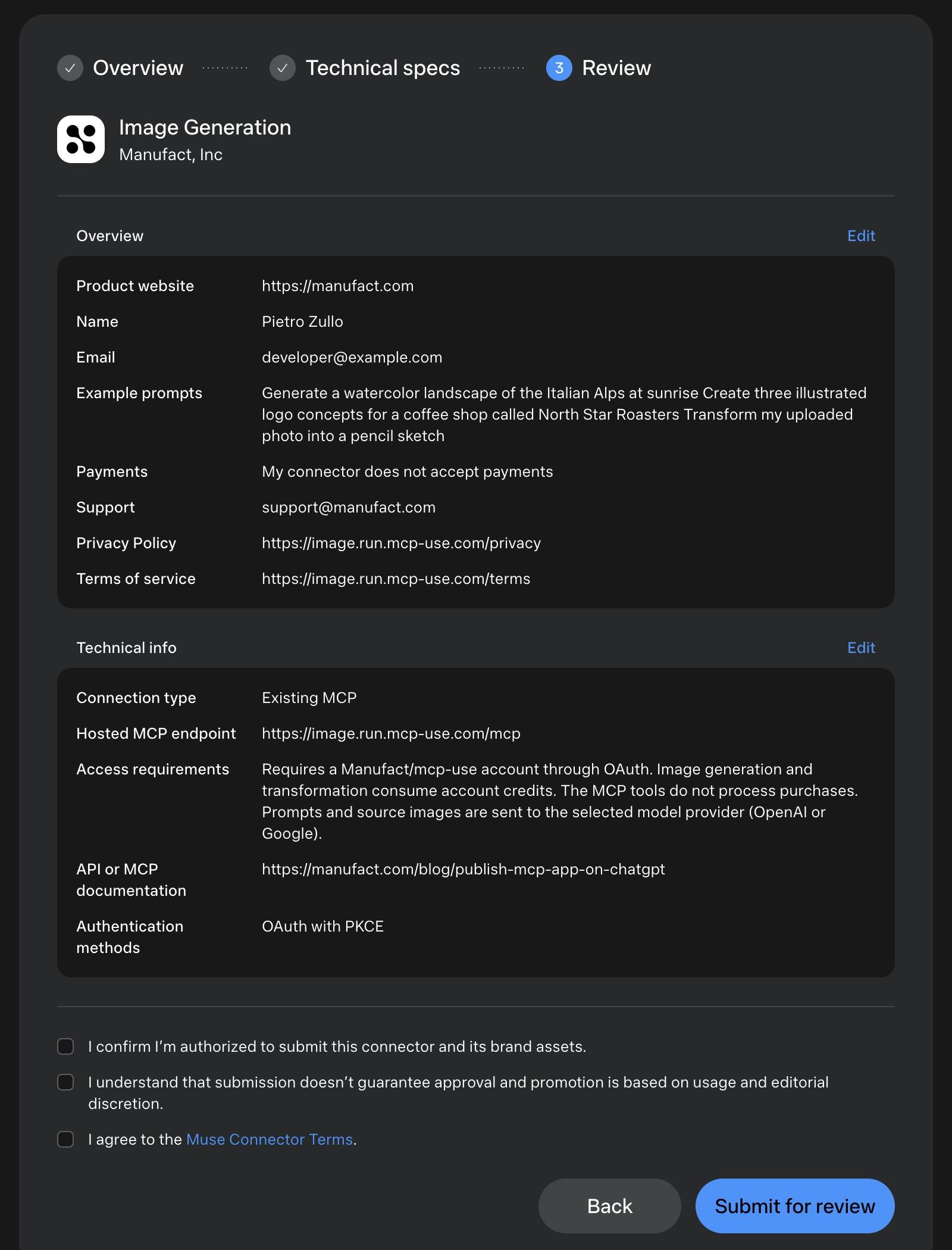
Read the terms and complete the acknowledgments, then click Submit for review. Keep the submission URL. Complete any additional intake shown in the developer portal.
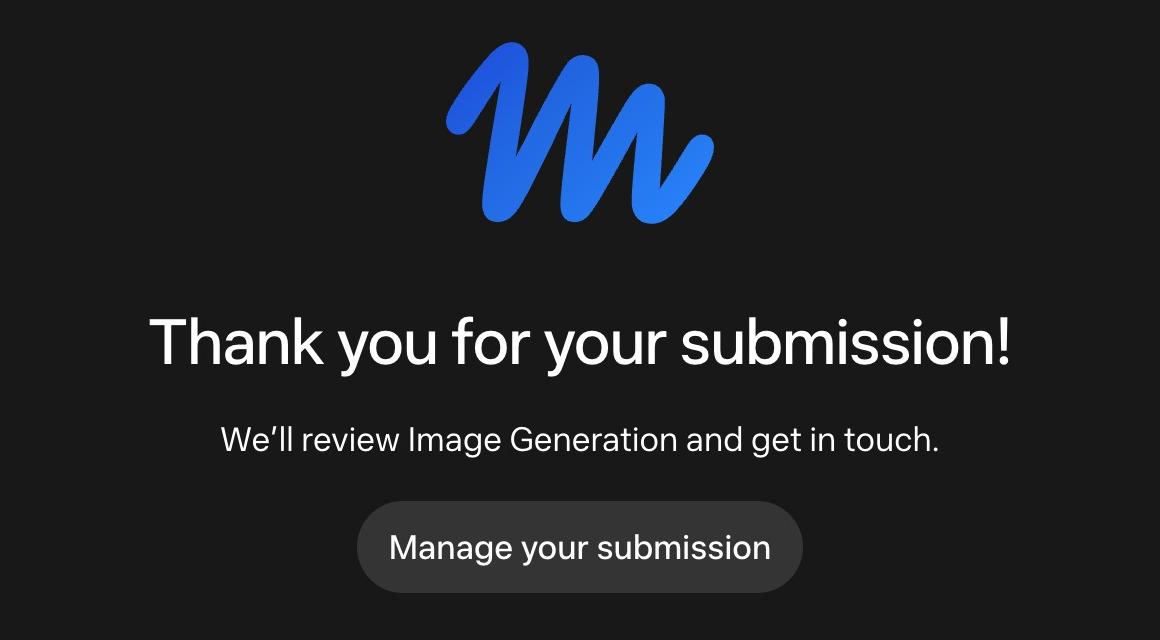
Muse confirms that the listing was submitted and links to Manage your submission. This confirmation means the listing reached Muse. The portal intake still needs attention.
Step 4: Complete the developer portal intake
Open your submission in the Muse developer portal and read the connector guidelines. On November 4, 2026, our dashboard listed Business verification, Data processing questionnaire, and Technical details as separate requirements. A reviewer message requested all three before the review could continue. Check each requirement's status and the reviewer messages for your submission.
Business verification with Persona
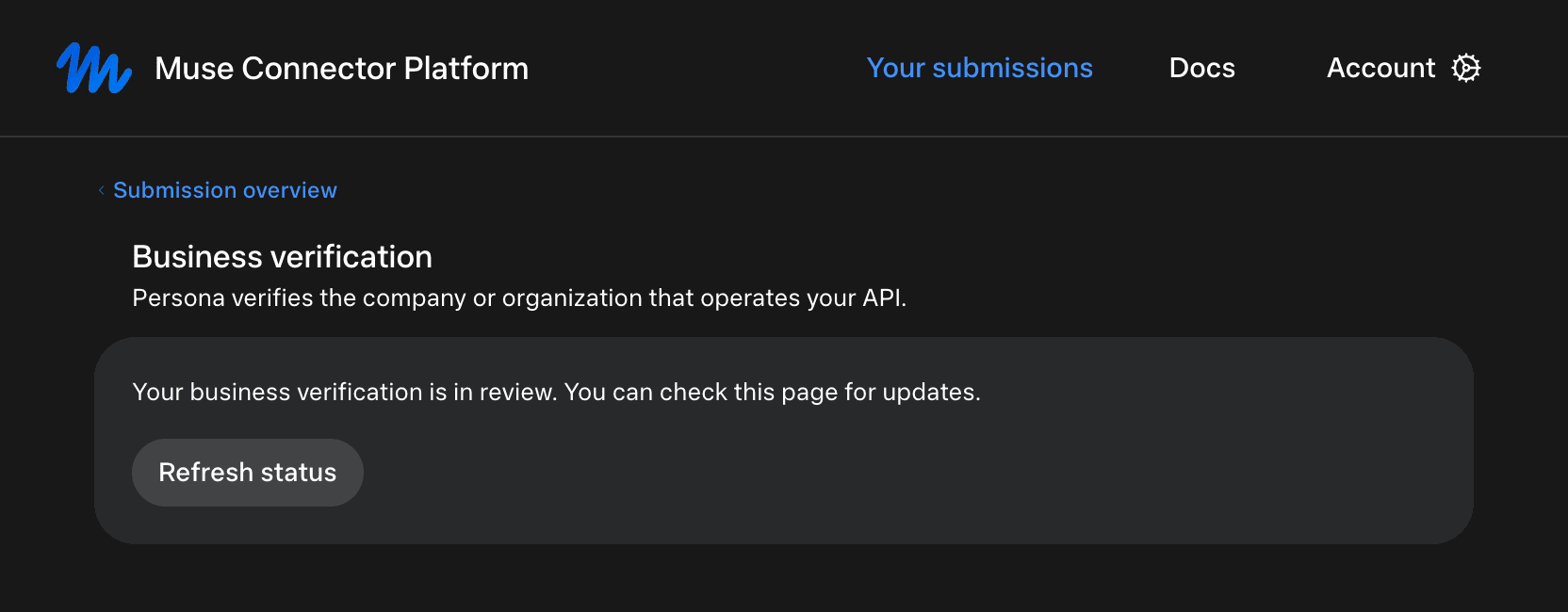
From the submission overview, click View beside Business verification. Muse explains that Persona verifies the company or organization that operates your API. Earlier in our onboarding, Muse offered business or personal verification, an identity check similar to KYC.
On November 4, 2026, our page showed “Your business verification is in review.” This status means the verification review is still pending; it does not confirm approval. Return to this page for updates.
Data processing questionnaire
Muse defines user data as any data about a person received from Muse, including their name, messages, or files. Answer for what the connector can do and access, even occasionally.
| Question area | Information to prepare |
|---|---|
| Organization and capabilities | Your organization type and whether the connector supports regulated actions or sensitive uses, such as financial transactions, professional advice, medical care, gambling, or physical security controls. |
| Sensitive data | Whether users can view, record, or change health or financial information, precise location, biometric or genetic data, government IDs, sensitive demographic information, or information about children under 18. |
| Deletion | Whether users can delete their Muse data themselves or request deletion. The form explicitly counts logs and backups as stored data. |
| Data and staff access | TLS 1.2 or newer, encryption of stored data including backups, access limited to staff who need it, mandatory MFA, regular access reviews, and logged admin access. |
| API and code security | Standard authentication such as OAuth 2.0, individual credentials, rate limiting, input validation, code review, security scanning, and penetration testing of the connector. |
| Incident response | A written incident-response plan that has been tested and a named contact for security issues. |
For a connector that exposes logs, files, or generated content, include the sensitive data those outputs can contain. Check the actual outputs and handling policies before selecting “None of these.”
Select security measures that are in place now and supported by current evidence. A SOC 2 report supports only the controls within its scope; it does not establish every measure listed in the form. The questionnaire accepts an optional trust-center or security-evidence URL and an optional SOC 2 Type II report as a PDF up to 4 MB.
Answers save automatically, so you can return after gathering missing evidence. Check the submission overview for any remaining requirements.
Technical details and reviewer access
The technical flow has four steps: Technical specs → Settings → Test → MCP listing. Confirm the endpoint and authentication settings. For OAuth, check the client-registration method and PKCE setting against your provider's capabilities. Muse supports Dynamic Client Registration (DCR) and can use a client ID metadata document (CIMD) when the provider supports it.
Enter the required scopes and provide dedicated test accounts with representative data for reviewers. Include notes about permissions and access restrictions. Enter credentials only in Muse's secure portal and keep test-account passwords out of screenshots. If a tool makes consequential changes, explain how reviewers can test it without a real charge or external side effect.
Test sign-in and inspect the authenticated MCP listing
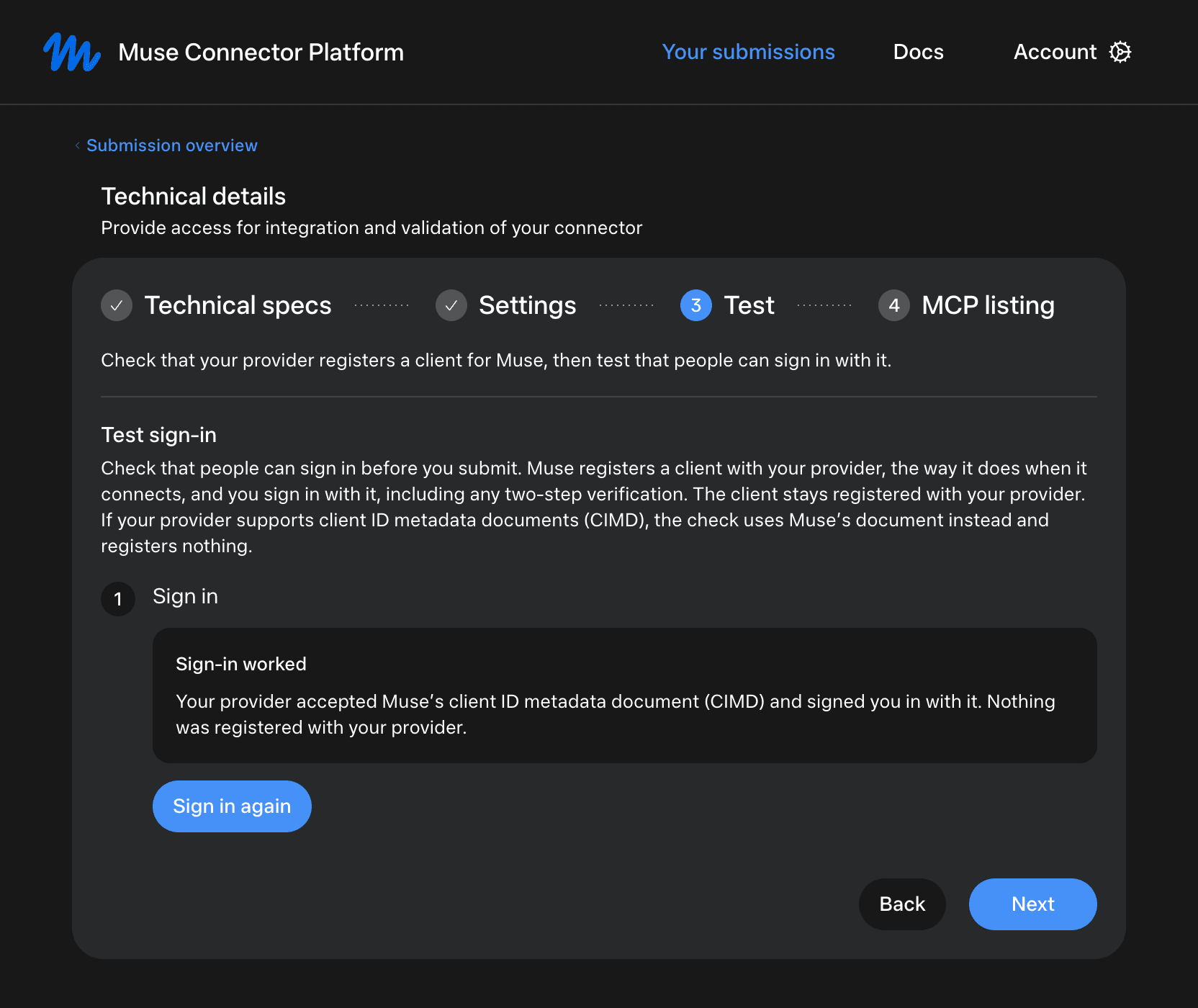
At Test, choose Set up sign-in test, then Sign in to test, and complete your provider's sign-in flow, including any two-step verification.
The check uses a registered client or, when supported, Muse's CIMD document. A client created for the test stays registered with your provider; the CIMD path registers nothing. Our November 4, 2026 test completed successfully through CIMD.
Next, inspect MCP listing. Muse uses the token from your latest credential check to list your server, and reviewers see the same listing. Expand tool entries to check their parameters, input and output schemas, and annotation badges.
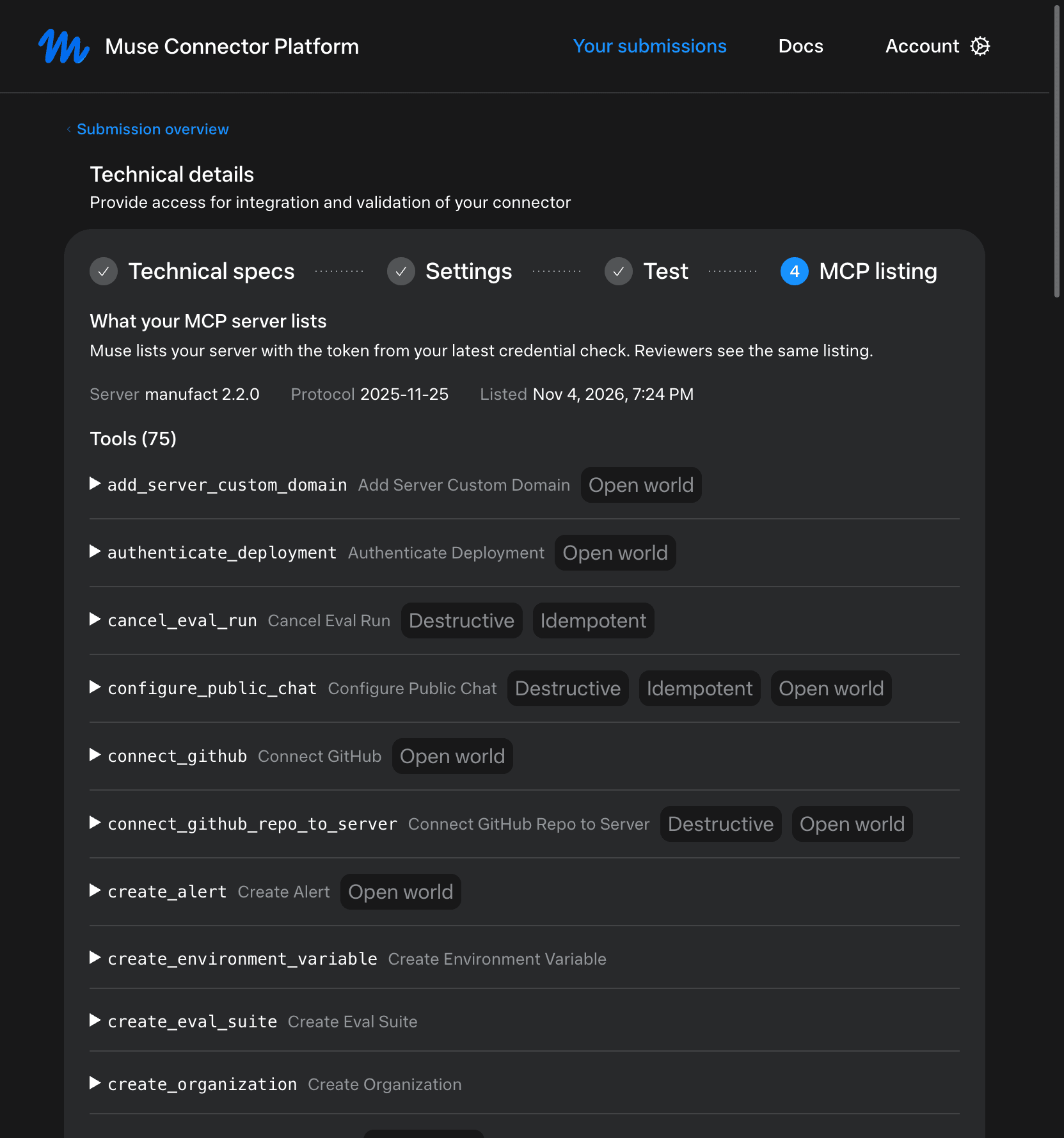
These checks verify sign-in interoperability and authenticated discovery. They do not establish successful tool execution, full compliance, or review approval.
What happens after submission?
After completing the intake, check the portal for review status. Muse performs a risk assessment, tool review, and end-to-end QA. Reviewers check permissions, results, and failure handling. Approval and featured placement are separate decisions. The connector guidelines also explain how to classify each tool as read or write and flag sensitive writes.
Muse's October 23, 2026 email reported more than 4,500 submissions and an onboarding backlog. Use the portal for the current status of your submission.
For other directories, see our guides to submitting an MCP app to ChatGPT and submitting an MCP server to Anthropic's directory.
For a comparison of distribution paths, including Grok custom connectors and the Cursor Marketplace, see how to distribute an MCP server across AI platforms.
Prepare your MCP server for submission
We can help test your endpoint and review your connector's listing details before you submit.