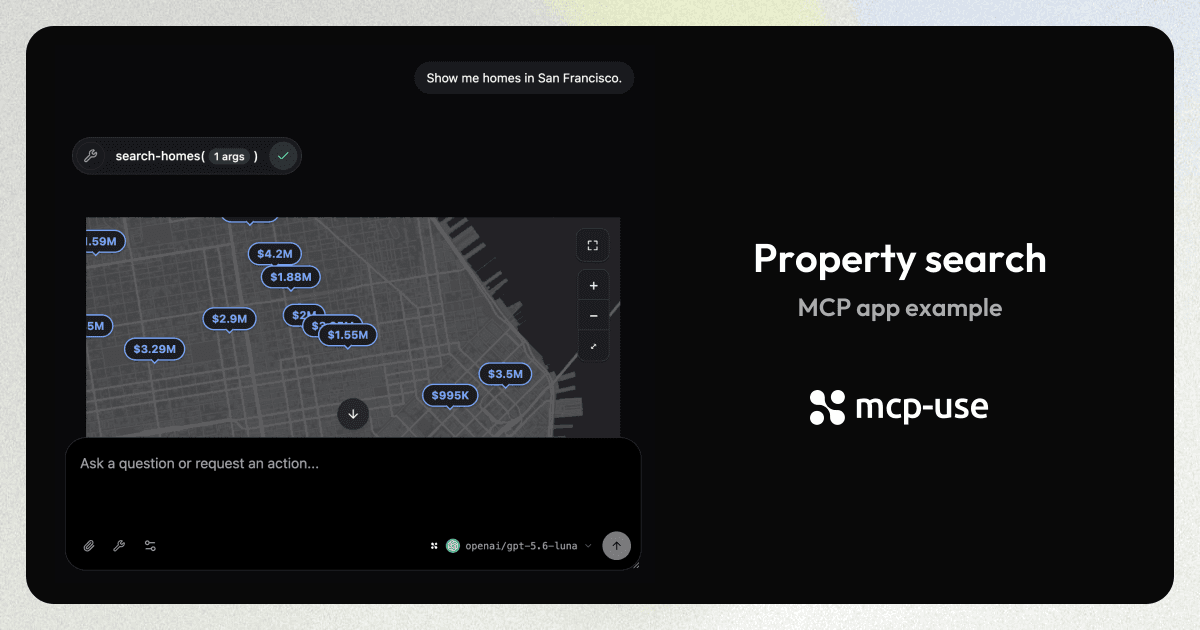
Build a Zillow-style MCP App: listing cards next to an interactive map with price pins. The model opens the view once with search-homes. After that, the view registers its own tools, so follow-ups such as "now the Mission, under $2M" update the open map instead of rendering a second view.
The listings are fictional San Francisco homes. Map tiles come from Esri's keyless Canvas basemaps, so the example needs no listing API or API key.
Try the live example
Ask for homes in San Francisco. Select Fullscreen in the view to see the listing cards, then click a card or pin to load its details.
Open the example in a new tab.
This embedded chat runs its model on Manufact's servers, which cannot reach tools registered inside the view. Follow-up refinements such as "now the Mission, under $2M" need a host that forwards view tools to the model. To try them, run the example with your own model provider API key.
Run the example
The example is a complete project with about 3,500 lines of view code, so clone it instead of copying it. It requires Node.js 22.22.2 or later.
git clone https://github.com/manufacts/mcp-use-property-search-example.git
cd mcp-use-property-search-example
npm ci
npm run dev
Open the Inspector URL printed by the CLI, select Chat, and configure a model provider with your own API key. The Inspector forwards view tools to the model only in this mode; the managed Manufact model cannot call them. Send these prompts in order:
Show me homes in San Francisco.
Now search the Mission, under $2M.
Remove the most expensive home.
Open the cheapest one on the map and save it.
Zoom in one step.
The first prompt calls search-homes and opens the view. Each later prompt calls a view tool, and the open map updates in place. Select Fullscreen in the view to switch display modes.
The project has four main files:
| File | Contents |
|---|---|
src/index.ts | The staged listings, search-homes, and get-listing-details |
views/property-search/view.tsx | The view, its view tools, and model context |
views/property-search/map.tsx | The Leaflet map, Esri tiles, price pins, and camera controls |
views/property-search/cards.tsx | Listing cards and the detail panel |
How it works
The example combines five MCP Apps patterns. Each one works on its own in your server.
Open the view once with the whole dataset
search-homes is the only tool that renders the view. Besides the matching listing IDs, it returns the whole staged catalog in structuredContent, so the view can filter any neighborhood locally without another server call. The tool description tells the model to use the view tools for follow-ups instead of calling search-homes again.
export const searchHomes = server.tool(
  {
    name: "search-homes",
    title: "Search San Francisco homes",
    description:
      "Open the interactive HomeScout map for San Francisco homes. Call this once to put the map on screen. After that, use the view's tools, such as `search-in-view`, for every follow-up search.",
    inputSchema: z.object({
      location: z.string().optional(),
      maxPrice: z.number().positive().optional(),
      minBeds: z.number().int().min(0).optional(),
      homeType: homeTypeSchema.optional(),
    }),
    outputSchema: z.object({
      area: areaSchema.nullable(),
      matchedIds: z.array(z.string()),
      catalog: z.object({
        listings: z.array(listingSchema),
        areas: z.array(areaMetaSchema),
        attribution: z.string(),
      }),
    }),
    view: {
      name: "property-search",
      prefersBorder: false,
      csp: {
        resourceDomains: ["https://server.arcgisonline.com"],
        connectDomains: ["https://server.arcgisonline.com"],
      },
    },
  },
  async ({ location = "San Francisco", maxPrice, minBeds = 0, homeType }) => {
    const area = resolveArea(location);
    const matched = LISTINGS.filter(
      (listing) =>
        (area === null || listing.area === area) &&
        (maxPrice === undefined || listing.price <= maxPrice) &&
        listing.beds >= minBeds &&
        (homeType === undefined || listing.homeType === homeType)
    );
    return {
      content: [
        {
          type: "text",
          text: `HomeScout is open with ${matched.length} homes. Refine from here with the view tools.`,
        },
      ],
      structuredContent: {
        area,
        matchedIds: matched.map((listing) => listing.id),
        catalog: { listings: LISTINGS, areas: AREAS, attribution: ATTRIBUTION },
      },
    };
  }
);
This excerpt is shortened. The example also accepts minPrice and minBaths filters and returns the median price.
Let the model drive the open view
useViewTool() registers a tool that exists only while the view is mounted. The host lists it to the model, and the handler runs inside the view with access to React state and refs. The example registers seven view tools. This one zooms the Leaflet map:
const zoomMapDefinition = {
  name: "zoom-map",
  title: "Zoom the map",
  description: "Zoom the live map in or out by whole steps.",
  inputSchema: z.object({
    direction: z.enum(["in", "out"]),
    steps: z.number().int().min(1).max(4).optional().describe("Defaults to 1"),
  }),
  outputSchema: z.object({ zoom: z.number() }),
} as const;

// Inside the view component:
useViewTool<typeof zoomMapDefinition>(
  zoomMapDefinition,
  async ({ direction, steps = 1 }) => {
    mapRef.current?.zoomBy(direction === "in" ? steps : -steps);
    const zoom = mapRef.current?.zoom() ?? 0;
    return {
      content: [{ type: "text", text: `Zoomed ${direction} to level ${zoom.toFixed(1)}.` }],
      structuredContent: { zoom },
    };
  }
);| View tool | Purpose |
|---|---|
search-in-view | Change the area, price, beds, baths, home type, or sort in place |
remove-listings | Hide homes from the cards and map |
select-listing | Fly to a home and open its detail card |
save-listings | Save or unsave homes |
fit-visible-results | Fit every visible home in frame |
zoom-map | Zoom in or out |
pan-map | Pan north, south, east, or west |
Keep the model in sync with the view
Users also filter, remove, and select homes by clicking. <ModelContext> reports the current view state to the model, so "remove the most expensive one" refers to what is on screen now:
<ModelContext
  content={[
    "HomeScout map is open. Use the view tools for every follow-up.",
    `Area: ${areaLabel}. Filters: ${describeFilters(effectiveFilters)}. Sort: ${sort}.`,
    `Visible (${visible.length}): ${visible
      .map((listing) => `${listing.id}: ${listing.address}, ${compactPrice(listing.price)}`)
      .join("; ")}.`,
  ].join("\n")}
/>
Load details with an app-only tool
get-listing-details has visibility: "app", so MCP Apps hosts hide it from the model while the view can still call it. The view calls it with useCallTool() when the user selects a card or pin:
export const getListingDetails = server.tool(
  {
    name: "get-listing-details",
    visibility: "app",
    inputSchema: z.object({ id: z.string() }),
    // ...
  },
  async ({ id }) => {
    // Look up the listing and return its staged details.
  }
);const detailsTool = useCallTool("get-listing-details");
// On card or pin selection:
void detailsTool.callTool({ id });Allow map tiles and fullscreen
The view loads tiles from server.arcgisonline.com, so the tool's view.csp lists that origin in resourceDomains and connectDomains. Without it, the host's Content Security Policy blocks the tiles and the map renders blank.
The view declares both display modes in viewConfig and requests fullscreen from a button with useDisplayMode():
export const viewConfig: ViewConfig = {
  autoResize: true,
  displayModes: ["inline", "fullscreen"],
};

// Inside the view component:
const { displayMode, availableDisplayModes, requestDisplayMode } = useDisplayMode();
const canFullscreen = availableDisplayModes.includes("fullscreen");
// On button click:
void requestDisplayMode({ mode: "fullscreen" });
Adapt it to your app
- Real listings: replace the staged
LISTINGSarray with a call to your listing API insidesearch-homes. Keep the returned catalog small. For large datasets, return only the first page and fetch more from the view with an app-only tool. - Another tile provider: change the tile URL in
map.tsx, update both CSP lists, and show the attribution your provider's terms require. - Other domains: the same shape fits any "search, then refine" app, such as hotels, restaurants, or job listings. Keep one rendering tool, move refinements into view tools, and report visible state with
ModelContext.
See the complete property search example for the runnable project, and Interactivity for more on view tools, app-only tools, and follow-up messages.
FAQ
About the cookbook, mcp-use, and Manufact Cloud.
What is the difference between mcp-use and Manufact?
mcp-use is our open-source TypeScript framework for building MCP servers and apps. Manufact is the company behind mcp-use. Manufact Cloud is our managed platform for deploying and operating MCP servers. Most cookbook recipes use mcp-use.
Do I need Manufact Cloud to use these recipes?
No. You can run mcp-use locally or host it on your own infrastructure. Follow each recipe's runtime requirements and setup instructions. Any third-party services used in a recipe may require their own accounts or API keys. Manufact Cloud is an optional hosting choice.