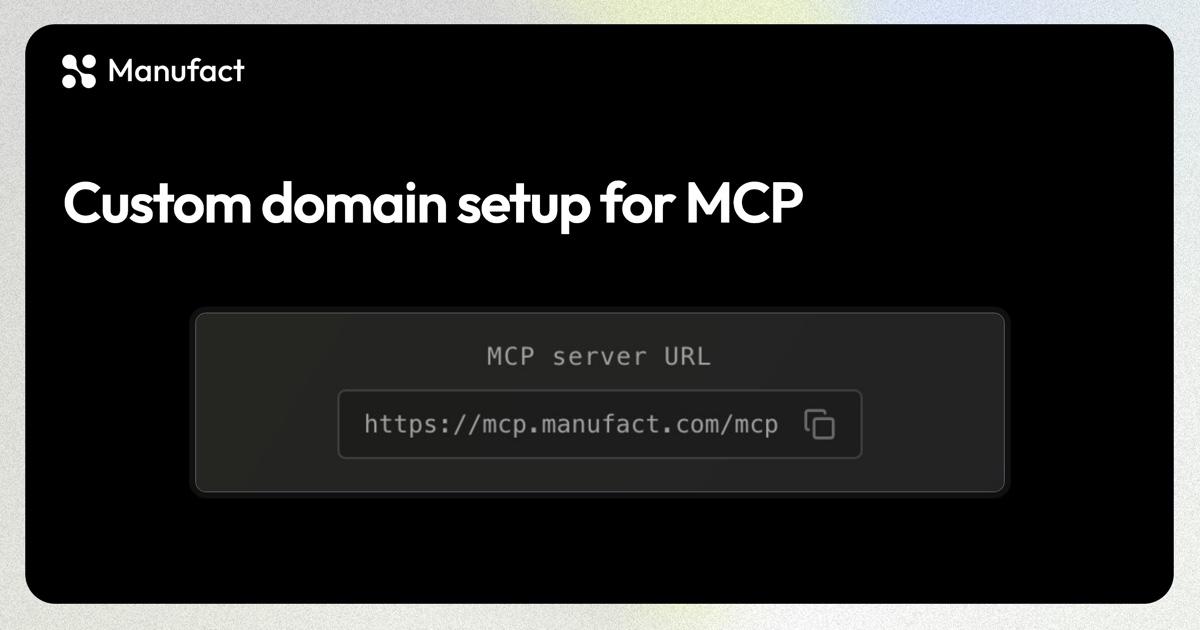
You can serve a Manufact-hosted MCP server from a subdomain you own, such as mcp.example.com. Add the domain on your server's Domains tab, validate it, and point its DNS to the target Manufact shows. The resulting MCP URL includes /mcp: https://mcp.example.com/mcp.
If the name already sends traffic to another server, prepare its HTTPS certificate with TXT records first. You can keep the current traffic record in place while ownership and certificate validation run, then prepare routing and change the CNAME when you are ready. The Domains documentation describes both paths.

Manufact's public MCP page shows its branded endpoint at mcp.manufact.com/mcp.
Choose the setup path
| Your situation | Start with | Change the traffic CNAME |
|---|---|---|
| A new subdomain with no existing traffic | The default CNAME instructions | When you add the domain |
| An existing subdomain serving users elsewhere | Switch to TXT validation | After ownership, certificate, and routing are ready |
Custom domains require a subdomain, such as mcp.example.com; an apex name such as example.com is not supported. You need access to the DNS provider for that subdomain. Keep the current target and its settings recorded if you are migrating an existing endpoint.
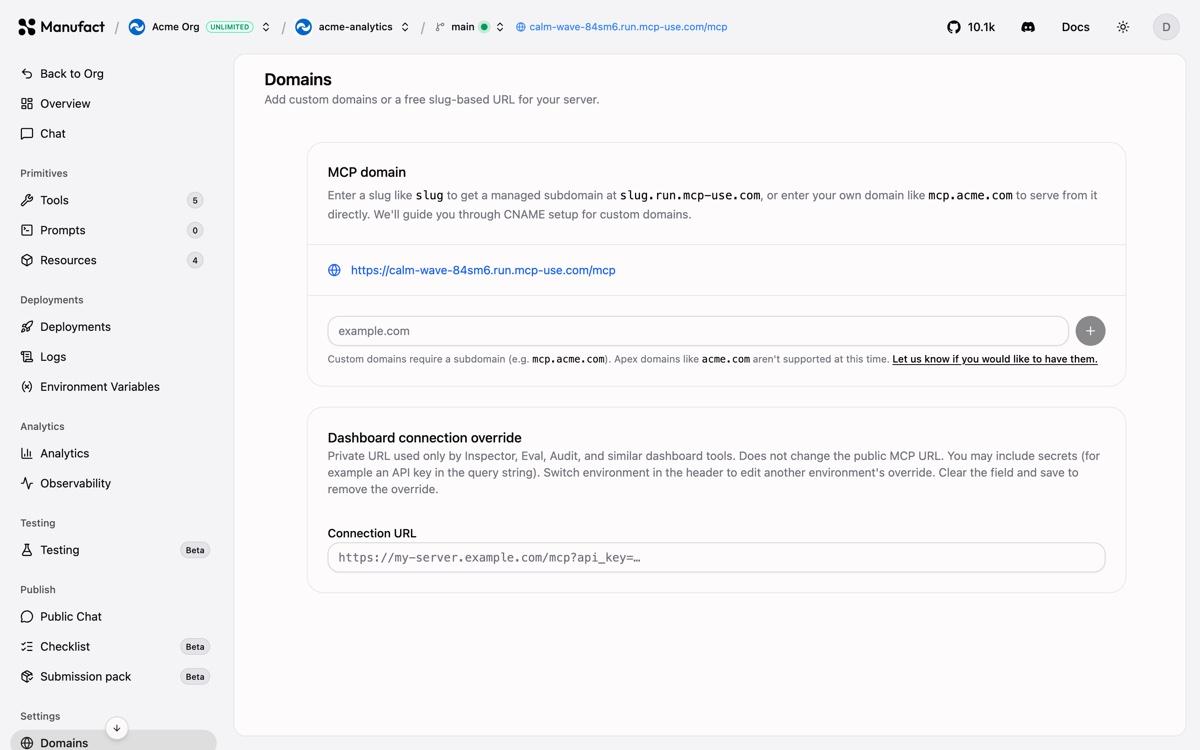
The Domains tab in the Manufact documentation demo. DNS instructions appear after you add a domain; use the values shown for your own server.
Set up a new MCP subdomain with a CNAME
- Open your server in Manufact Cloud and select Domains. Check the environment selector if you use preview branches: a domain added on a preview branch routes to that branch's preview deployment.
- Select Add domain and enter your subdomain, for example
mcp.example.com. - At your DNS provider, add the CNAME record shown in the dashboard. The documented target is
deploy.mcp-use.com; copy the name and value shown for your domain rather than retyping them. - Return to the Domains tab. Manufact checks DNS automatically and provisions SSL after the record resolves. The domain then shows Pending deploy until you redeploy the hosted server.
- Once the deployment and domain are ready, connect to
https://mcp.example.com/mcpfrom an MCP client and call a tool. Confirm the result before sharing the new URL.
DNS providers format record names differently. Some ask for mcp; others ask for the full mcp.example.com. Check the resulting hostname in your provider before saving. If you use a provider with a proxy option, set the CNAME to DNS-only so Manufact can detect the traffic change automatically.
Prepare HTTPS before moving an existing MCP domain
The direct CNAME path points the name to Manufact before its certificate is ready. For a planned migration, use TXT validation to prepare HTTPS while the existing CNAME still serves your current endpoint.
- Add the existing subdomain on the Domains tab. Under its CNAME records table, select Switch to TXT validation.
- Add every TXT record shown at your DNS provider. The ownership row appears first. Certificate rows can show Preparing record… until their values arrive; return to the tab and copy the current values. Add multiple TXT values when the table lists them at the same name.
- Wait until Domain ownership and Certificate both show Ready. The dashboard rechecks records automatically, including after you leave and return. Keep the current traffic DNS unchanged during this stage.
- Select Activate domain when you are ready to move ahead. For a hosted server, redeploy so Manufact can prepare routing. A ready certificate by itself does not change the server's connection URL.
- After routing is ready, the DNS table adds 3. Connect traffic with a CNAME target. Change the traffic CNAME to that target. Use a DNS-only (unproxied) record so the dashboard can detect the change automatically.
- Check the domain status and make an MCP tool call through
https://mcp.example.com/mcp. Then update any client configurations or directory listings that should use the branded URL.
Other custom domains on the same server continue to work during this process. Still, plan the switch as a migration: DNS caches, certificate validation, client configuration, and the old endpoint can each affect what users see. Keep the old endpoint available until you have verified the new connection in the clients that matter to you.
If validation stalls
TXT records are still pending. Compare each record name and value with the current table in the Domains tab. Certificate validation tokens can expire and change before issuance. Check for multiple values at one name, and allow for your DNS provider's propagation time.
The dashboard reports a CAA error. On the apex domain, allow the certificate authorities listed in the dashboard: letsencrypt.org, pki.goog, digicert.com, and ssl.com. The Domains documentation has the current CAA guidance.
The certificate is ready but traffic still uses the old server. That is expected in the TXT preparation path. Activate the domain, redeploy the hosted server, wait for 3. Connect traffic, and then change the CNAME.
DNS changed but the dashboard does not show it. Confirm that the CNAME is DNS-only rather than proxied, and that its name and target match the final row in the dashboard. Check the public DNS answer from more than one resolver if your provider has just updated the record.
Which URL should you share?
A newly hosted server has a slug URL at https://<slug>.run.mcp-use.com/mcp. It works without DNS setup. Once a production custom domain is active, the hosted deployment disables the bare production slug URL. Use your branded endpoint in client configurations and check it before relying on it. Custom-domain traffic appears in Manufact analytics. For deployment setup before adding a domain, see the MCP server hosting guide and Manufact hosting.
Frequently asked questions
Can I use my root domain instead of a subdomain?
No. Manufact custom domains currently require a subdomain such as mcp.example.com. Apex domains such as example.com are not supported.
Can I prepare the certificate without changing where users connect?
Yes. Switch the domain to TXT validation and add the ownership and certificate records while the traffic DNS keeps pointing to your current endpoint. Activating the domain and redeploying prepare routing; changing the final CNAME connects traffic.
Will changing the domain update existing MCP clients automatically?
No. Clients configured with a specific URL keep using it until you update their configuration or listing. A production custom domain can replace the managed slug URL after deployment, so update clients that still use the slug. Test the new URL in each client before retiring any existing custom endpoint.
Try it on your server
Open your server's Domains tab in Manufact Cloud, add the subdomain you want to use, and follow the DNS records shown there. If the name already serves users, choose TXT validation so you can prepare HTTPS before changing its traffic record.